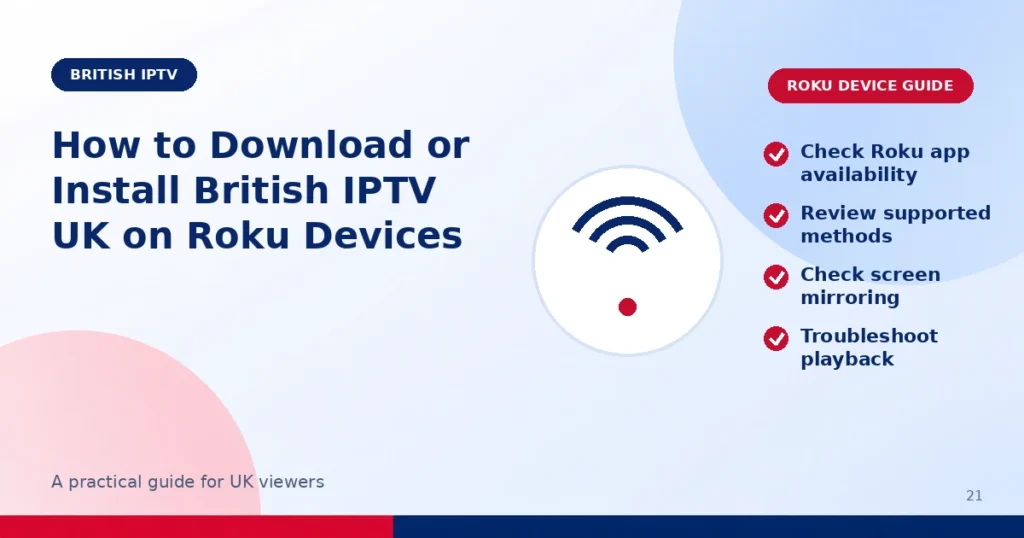
Roku devices make it easy to stream entertainment on your television, but installing British IPTV on Roku is different from setting it up on a Firestick, Android TV or Android box. Roku uses its own operating system and app store, which means you cannot simply download an Android IPTV APK and install it on your device.
If you want to watch British IPTV on a Roku TV, Roku Streaming Stick or Roku Express, you first need to check which streaming options your IPTV provider supports. Depending on your device and provider, you may be able to use a compatible Roku channel, screen mirroring or Apple AirPlay.
This guide explains how to check compatibility, install available channels, connect another device and troubleshoot common streaming problems.
Can You Install British IPTV Directly on Roku?
Yes, but only if your IPTV provider offers a compatible Roku channel or another supported way to access its service.
Unlike Android-based streaming devices, Roku does not generally allow users to install third-party Android applications. This means popular IPTV apps designed for Android or Firestick may not have a Roku version.
Before trying to install anything, understand these three points:
- Roku Channel Store: You can install channels officially available for your Roku device.
- Screen mirroring: You can display compatible Android or Windows device screens on your Roku.
- Apple AirPlay: Supported Roku models can receive video and screen content from compatible Apple devices.
An IPTV subscription and an IPTV player are also different things. Your subscription provides access to a service, while a compatible player or streaming method is needed to watch its content.
What You Need Before Setting Up British IPTV on Roku
Prepare the following before starting the setup:
- Roku device: A compatible Roku TV, Roku Streaming Stick, Roku Express or another supported model.
- Internet connection: A stable Wi-Fi connection or wired connection if your model supports it.
- Roku account: Your device should be activated and connected to your Roku account.
- British IPTV subscription: You need an active subscription from a provider that supports your intended streaming method.
- Compatible app or device: Depending on the provider, you may need a Roku channel, Android phone, Windows PC, iPhone or iPad.
It is also worth checking your Roku model and software version. Open Settings > System > About to find your device information.
Method 1: Install a Compatible IPTV Channel from the Roku Store
The simplest option is to use an IPTV-related channel that is officially available in the Roku Channel Store and compatible with your provider.
However, finding an IPTV player in the store does not automatically mean it supports your British IPTV subscription. Check the app description and provider instructions before installing it.
Follow these steps:
Step 1: Open the Roku Home Screen
Switch on your Roku device and press the Home button on your remote.
Step 2: Open the Channel Store
Select the Store or Streaming Channels option. The exact label may vary depending on your Roku interface and region.
Step 3: Search for a Compatible App
Use the search function to find the app recommended by your IPTV provider. Check its compatibility and available features before adding it.
Step 4: Add the Channel
Select the app and choose Add app or Add Channel, depending on the interface. If a purchase or subscription is required, review the details before proceeding.
Step 5: Open the Installed App
Return to the Roku Home Screen and locate the newly installed channel.
Step 6: Follow the Provider’s Setup Instructions
If the app supports your service, follow its instructions to connect your subscription. You may need login details or another supported activation method.
Roku explains that apps can be added through its device interface, website or mobile app. If a newly added channel does not appear, check for a system update.
Method 2: Watch British IPTV on Roku Using Android Screen Mirroring
If your IPTV provider has a compatible Android app but no Roku version, screen mirroring may provide another option.
This method displays your Android phone or tablet screen on your Roku television. It does not install the IPTV app directly on Roku.
Step 1: Connect Both Devices to the Same Wi-Fi
Make sure your Android device and Roku are connected to the same wireless network.
Step 2: Enable Screen Mirroring on Roku
Depending on your Roku software, open:
Settings > System > Screen mirroring
Choose the appropriate screen-mirroring mode if the option is available.
Step 3: Open Screen Mirroring on Android
On your phone or tablet, open the quick settings panel and look for an option such as Smart View, Cast, Screen Share or Wireless Display. The name depends on your device manufacturer.
Step 4: Select Your Roku Device
Choose your Roku device from the available wireless display list.
Step 5: Allow the Connection
If a permission request appears on your television, select Allow or Always allow if you trust the device.
Step 6: Open Your IPTV App
Launch the compatible IPTV application on your Android device and sign in using the details provided by your service.
If everything is supported, your phone or tablet screen should appear on the television.
Keep in mind that screen mirroring depends on device compatibility. Some Android phones do not support the same wireless display technology as Roku.
Method 3: Use Apple AirPlay to Stream British IPTV on Roku
Apple users may be able to stream content from an iPhone, iPad or Mac using AirPlay. This is useful when your Roku model supports AirPlay and the app or content you are using allows it.
Step 1: Check Roku AirPlay Compatibility
On your Roku device, open Settings > System > About to identify your model and software version.
Step 2: Enable AirPlay
If supported, go to:
Settings > Apple AirPlay and HomeKit
Turn AirPlay on.
Step 3: Connect to the Same Network
Connect your Apple device and Roku to the same Wi-Fi network.
Step 4: Open Your IPTV App
Launch the compatible IPTV application or supported video source on your iPhone, iPad or Mac.
Step 5: Select AirPlay
Tap the AirPlay icon or open Control Centre and select Screen Mirroring, depending on what you want to share.
Step 6: Choose Your Roku Device
Select your Roku from the available devices. Follow any on-screen instructions to complete the connection.
Not every Roku model supports AirPlay, and not every IPTV application allows its content to be streamed this way. Check compatibility before relying on this method.
Why Is British IPTV Not Working on Roku?
If your IPTV content does not play, the problem may be related to the streaming method, network connection, app compatibility or subscription.
| Problem | Possible solution |
| IPTV app is not available | Check whether your provider offers a Roku-compatible option. |
| Roku cannot find your phone | Connect both devices to the same Wi-Fi and check mirroring compatibility. |
| AirPlay is not showing | Confirm that your Roku model supports AirPlay and that it is enabled. |
| Video keeps buffering | Restart your router and check your internet connection. |
| Login details are rejected | Recheck your username, password and subscription status. |
| Screen mirroring disconnects | Keep both devices nearby and reduce wireless network congestion. |
Additional Troubleshooting Tips
- Restart your Roku device and streaming source.
- Check for Roku software updates under Settings > System > Software update.
- Restart your router if other streaming services are also having connection problems.
- Close unnecessary apps on your phone or computer when mirroring.
- Contact your IPTV provider if your account details are not working.
Avoid repeatedly reinstalling applications before checking whether the app actually supports Roku.
Can You Install IPTV Smarters Pro or TiviMate on Roku?
Many users search for IPTV Smarters Pro, TiviMate and similar applications when setting up British IPTV.
However, these apps are commonly associated with Android-based platforms. You should not assume that an Android or Firestick version can be installed directly on Roku.
Roku does not use Android APK installation as its standard app installation method. If your preferred IPTV player does not have a compatible Roku version, check whether your provider supports screen mirroring, AirPlay or another approved streaming option.
You can also consider an Android TV box or Fire TV device if direct access to an Android-compatible IPTV player is important to your setup.
Tips for a Better British IPTV Streaming Experience on Roku
Once you have established a compatible connection, a few simple practices can help improve playback:
- Use a stable internet connection: Avoid streaming over a weak or frequently disconnecting Wi-Fi network.
- Keep Roku updated: Install available system updates to maintain compatibility and security.
- Check your streaming device: Older phones and computers may struggle with high-resolution screen mirroring.
- Close background applications: This can help your source device perform more smoothly.
- Use the correct subscription details: Make sure your account is active and your provider supports the selected playback method.
- Check content availability: Channel access and streaming quality depend on your provider’s service and content rights.
Is Roku the Best Device for British IPTV?
Roku is a convenient streaming platform, but it may not be the easiest choice for every IPTV user. Its app ecosystem is more restricted than Android-based streaming devices, and the availability of compatible IPTV applications can be limited.
If your provider offers a dedicated Roku channel, Roku may be suitable. If you need a wider choice of IPTV players or direct playlist support, an Android TV box or Firestick may offer more flexibility.
Choose a device based on the applications your provider officially supports, your preferred streaming method and your budget.
Frequently Asked Questions
1. Can I download British IPTV on Roku?
You can add a compatible IPTV channel if one is available in the Roku Store and supports your provider. Otherwise, you may need screen mirroring or AirPlay.
2. How do I install IPTV on Roku TV?
Check the Roku Channel Store for a compatible app. If your provider does not offer one, check its instructions for supported alternative streaming methods.
3. Does Roku support IPTV Smarters Pro?
Do not assume the Android version of IPTV Smarters Pro works on Roku. Check whether a compatible Roku version is officially available.
4. Can I use an M3U playlist on Roku?
Roku does not provide universal native M3U playlist installation. You need a compatible Roku application or another supported playback method.
5. Can I watch IPTV on Roku using my iPhone?
Yes, potentially. You can use AirPlay if your Roku model and IPTV app support it. Both devices should be connected to the same Wi-Fi network.
6. Why can’t I find my IPTV app in the Roku Store?
The app may not have a Roku version or may not be available in your region. Contact the app developer or IPTV provider to confirm compatibility.
7. Is Roku better than Firestick for IPTV?
Firestick generally offers more flexibility for Android-based IPTV applications. Roku can still work well when your provider supports a compatible Roku channel or streaming method.
8. Do I need an IPTV subscription to use an IPTV player?
Yes, if you want access to subscription-based IPTV content. A player is only an application and does not automatically provide live channels or a content subscription.
Final Thoughts
Setting up British IPTV on Roku requires a little more compatibility checking than installing IPTV on an Android device. Start by checking the Roku Channel Store for a supported app. If no suitable channel is available, explore Android screen mirroring or Apple AirPlay, provided your devices and IPTV application support these methods.
Before purchasing a subscription or changing your streaming setup, confirm that your provider supports Roku or your preferred alternative. This simple check can save time and help you choose a setup that works reliably with your television.