If you have an IPTV subscription, you may have received a server URL, username, and password instead of a traditional playlist link. These details are commonly used with an Xtream IPTV playlist setup, allowing compatible IPTV players to connect to your provider’s service and organise available content.
Understanding how an IPTV Xtream playlist works can make it easier to configure your IPTV player, access live TV, browse available categories, and troubleshoot connection problems. Whether you are setting up IPTV for the first time or switching to another player, knowing the correct login method can save time and prevent common mistakes.
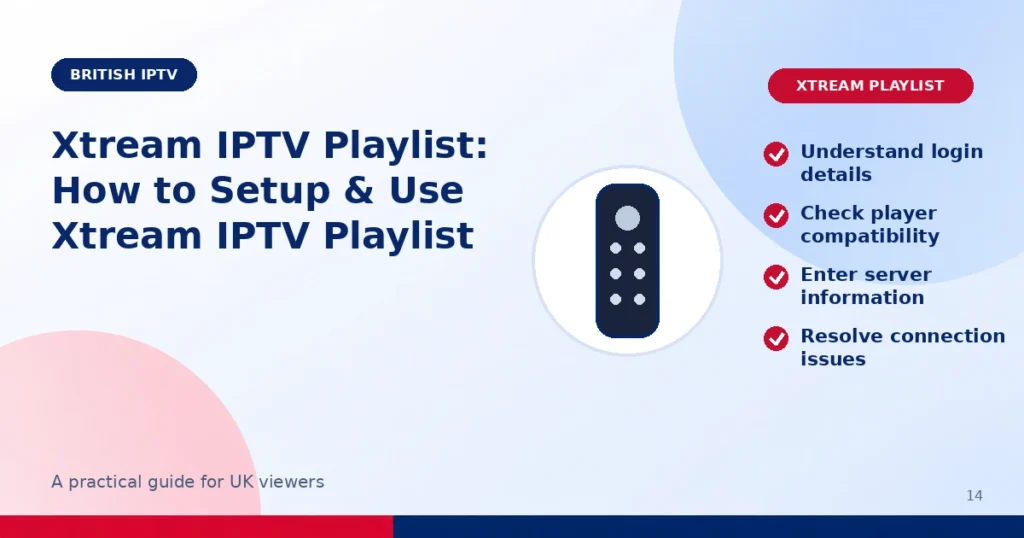
In this guide, you will learn what an Xtream IPTV playlist is, how Xtream Codes login works, how to set it up on compatible devices, and how to resolve common issues.
What Is an Xtream IPTV Playlist?
An Xtream IPTV playlist is a way of connecting a compatible IPTV player to an IPTV service using account credentials and a server address. Instead of manually entering a long list of channel links, users can enter their provider’s server URL, username, and password.
The player then communicates with the provider’s supported system to retrieve available content and organise it into categories.
Depending on the provider and player, the available sections may include:
- Live TV channels
- Movies and video-on-demand (VOD)
- TV series
- Channel categories
- Electronic Programme Guide (EPG)
- Favourites and recently watched content
The exact features depend on the IPTV service, subscription, and application. An Xtream IPTV playlist does not automatically include channels or provide a subscription. It is a connection method that works with a compatible service.
What Is the Difference Between Xtream Codes and an M3U Playlist?
Xtream Codes login and M3U playlists are two common ways to connect an IPTV player to a compatible service. Both can provide access to IPTV streams, but the setup process is different.
| Feature | Xtream Codes Login | M3U Playlist |
| Login method | Server URL, username, password | Playlist URL |
| Setup | Enter account credentials | Paste playlist address |
| Organisation | May separate live TV, movies and series | Depends on playlist structure |
| EPG support | Depends on provider and player | May require a separate EPG source |
| Compatibility | Requires Xtream Codes support | Requires M3U support |
Xtream Codes login: This method uses three main details supplied by your IPTV provider. The compatible player uses them to connect to the service.
M3U playlist: This method uses a playlist URL containing references to available streams. You add that address to an IPTV player that supports M3U imports.
Neither method is automatically better. The right choice depends on what your provider supplies and which formats your IPTV player supports.
What Information Do You Need for an IPTV Xtream Playlist?
Before setting up an IPTV Xtream playlist, make sure you have the correct account information from your provider.
Usually, you need these three details:
1. Server URL
The server URL identifies the IPTV service endpoint that your player needs to connect to. Your provider should supply the correct address, including the required port if applicable.
2. Username
Your IPTV username identifies your account. Enter it exactly as provided, paying attention to capitalisation and any special characters.
3. Password
Your password authenticates your account. Avoid adding extra spaces when copying it into the player.
Some providers may also supply an M3U URL or a separate EPG address. These are not always required for Xtream Codes login.
Keep your credentials private. Do not post your server URL, username, password, or complete playlist link publicly.
How to Set Up an Xtream IPTV Playlist
The setup process is similar across many compatible IPTV applications. The names of the menus may differ, but the basic steps are generally the same.
Step 1: Choose an IPTV Player That Supports Xtream Codes
First, select an IPTV player that offers Xtream Codes or API login support.
Before installing an application, check:
- Whether it supports Xtream Codes authentication
- Whether it works with your device and operating system
- Whether it supports live TV playback
- Whether it offers EPG and category organisation
- Whether it supports movies and series, if your subscription includes them
- Whether it has a clear privacy policy and reliable updates
Remember that an IPTV player is separate from an IPTV subscription. Installing a player does not automatically provide channels or streaming access.
Step 2: Open the Add Playlist or Login Section
Launch your chosen IPTV application and look for an option such as:
- Add User
- Add Playlist
- Login with Xtream Codes API
- Add Account
- Xtream Codes Login
Select the option that allows you to enter a server address, username, and password.
If you cannot find this option, check the application’s help documentation. It may not support Xtream Codes login.
Step 3: Enter Your Xtream Codes Details
Your IPTV provider should have supplied the login information.
Enter the following details:
- Playlist name: Choose a name that helps you identify the account.
- Username: Enter the username supplied by your provider.
- Password: Enter your account password.
- Server URL: Paste the server address supplied by your provider.
Check every field before submitting the information. A missing character, incorrect port, or extra space can prevent the player from connecting.
Step 4: Connect to the IPTV Service
After entering your details, select the login, connect, or add user option.
The player will attempt to authenticate your account and retrieve the available playlist information.
If the connection is successful, the application may display sections such as Live TV, Movies, and Series, depending on your subscription and player.
Step 5: Load Channels and Content
Allow the player to finish loading the available categories and channel information.
You may need to refresh the playlist or wait for the EPG to update. Some players also offer options to organise channels, create favourites, or hide categories you do not use.
Once the content has loaded, select an available channel and test playback.
Step 6: Check Playback and EPG Information
Open a few channels to make sure the streams work correctly. If your player supports an electronic programme guide, check whether programme titles and schedules appear.
If the EPG is empty, it may need a refresh or a separate source from your provider. Not every service supplies EPG information automatically.
How to Use an Xtream IPTV Playlist on Different Devices
You can use Xtream Codes login on different devices, provided your IPTV player and operating system support it.
Amazon Fire TV Stick
On a Fire TV Stick, install an IPTV player from a trusted and available app source. Open the application, select the Xtream Codes login option, and enter your provider’s server URL, username, and password.
After connecting, allow the player to load the available categories and test a channel.
Android TV and Google TV
Android TV and Google TV devices support various IPTV applications, although availability differs by model and region.
Install a compatible player, open its account setup section, and enter your Xtream Codes details. If the player supports the login format, it should connect to your service.
Smart TVs
Some Samsung, LG, and other Smart TV models support IPTV applications with Xtream Codes login.
Check your television’s app store and the application’s compatibility requirements. Not every IPTV player is available on every Smart TV operating system.
Windows PC and Mac
You can use a compatible desktop IPTV application or browser-based player on Windows and Mac.
If the player supports Xtream Codes login, enter the three credentials supplied by your provider. Browser-based options may have different compatibility requirements, so check their supported login methods before use.
Android Smartphones and Tablets
On Android phones and tablets, choose a compatible IPTV application and look for the Xtream Codes API login option.
The setup process is similar to other devices. However, the interface and playback controls may be adapted for smaller screens.
How to Fix Common Xtream IPTV Playlist Problems
Sometimes an IPTV player may fail to connect, load channels, or display programme information. The cause may be incorrect credentials, an expired subscription, a network problem, or an incompatibility between the player and provider.
Here are some common problems and their possible solutions.
1. Xtream IPTV Playlist Not Loading
If the playlist does not load, check that you have entered the correct server URL, username, and password.
Also confirm that:
- Your subscription is active.
- The server address includes the correct port.
- You selected Xtream Codes login rather than M3U import.
- Your player supports the provider’s login method.
If everything appears correct, contact your provider to check the account and server status.
2. Invalid Username or Password
An authentication error usually means that the login information could not be verified.
Copy your username and password again, checking for spaces and incorrect characters. If the details still do not work, ask your provider to confirm that your account is active and the credentials have not changed.
3. IPTV Channels Are Not Showing
If the player connects but the channel list is empty, try refreshing or reloading the playlist.
The problem may also be related to your subscription permissions or the provider’s playlist configuration. Contact the provider if the available categories remain missing.
4. Xtream IPTV Playlist Keeps Buffering
Buffering can be caused by an unstable internet connection, network congestion, insufficient device resources, or problems with the stream source.
Try restarting your router, closing unnecessary applications, and testing another channel. If possible, use a wired connection or a stronger Wi-Fi signal.
5. EPG Is Not Working
An electronic programme guide may not load if the provider has not supplied EPG data or the player has not refreshed it correctly.
Check the EPG settings, refresh the guide, and confirm whether your subscription includes programme information.
6. IPTV Player Cannot Connect to the Server
Check that the server URL is correct and that your internet connection is working.
The provider’s server may also be temporarily unavailable, or the service may have restrictions affecting your connection. If the issue continues, ask your provider to investigate.
Tips for Managing Your IPTV Xtream Playlist
Once your IPTV player is connected, a few simple practices can help you manage the setup more effectively.
- Keep your login details secure: Do not share your username, password, or playlist information publicly.
- Use a compatible player: Confirm that the application supports Xtream Codes login before entering your credentials.
- Check subscription status: An expired subscription can prevent authentication or access to streams.
- Refresh your playlist: Reload channel information when categories or programme details appear outdated.
- Keep applications updated: Use supported versions of your IPTV player and device software.
- Maintain a stable internet connection: Reliable connectivity helps reduce playback interruptions.
- Avoid untrusted playlist websites: Use login details and playlist information supplied by a provider you trust.
Is an Xtream IPTV Playlist Safe to Use?
An Xtream IPTV playlist is a connection method, so its safety depends on the provider, player, website, and content source you use.
Follow these precautions:
- Choose a reputable IPTV player from a trusted source.
- Check the privacy policy before submitting account details.
- Avoid websites that request unnecessary personal information.
- Keep your IPTV credentials private.
- Use services that have the appropriate rights to distribute their content.
Do not assume that a playlist is legitimate simply because it connects successfully. Check that the provider is authorised to distribute the content it offers.
Choose a Convenient IPTV Setup with British TV UK
Setting up an Xtream IPTV playlist becomes easier when you understand how server URLs, usernames, and passwords work together. With a compatible IPTV player and the correct account information, you can connect your subscription, organise available channels, and watch supported streams on compatible devices.
If you are exploring IPTV options in the UK, British TV UK provides subscription information and setup guidance to help users understand their streaming options.
Explore the British TV UK website to review its subscription plans, supported apps, and installation instructions before choosing a setup that suits your device.
Frequently Asked Questions
1. What is an Xtream IPTV playlist?
An Xtream IPTV playlist is a way to connect a compatible IPTV player to a service using a server URL, username, and password. It can organise available live TV and other content into categories.
2. How do I use an IPTV Xtream playlist?
Install a compatible IPTV player, select its Xtream Codes login option, enter your server URL and account credentials, and allow the player to load the available content.
3. Is an Xtream IPTV playlist the same as an M3U playlist?
No. Xtream Codes login generally uses a server URL, username, and password, while an M3U playlist uses a playlist URL containing references to media streams.
4. What details do I need for Xtream Codes login?
You generally need a server URL, username, and password supplied by your IPTV provider. Some services may also provide a separate M3U playlist or EPG address.
5. Can I use an Xtream IPTV playlist on Firestick?
Yes, if you use an IPTV application that supports Xtream Codes login and is compatible with your Fire TV Stick model and software.
6. Why is my Xtream IPTV playlist not working?
Common reasons include incorrect login details, an expired subscription, a wrong server URL, network problems, or temporary server issues. Check your credentials and contact your provider if the problem continues.
7. Does an Xtream IPTV playlist include channels?
The login method itself does not provide channels. It connects a compatible player to an IPTV service, and the available content depends on the provider and your subscription.
8. Can I use Xtream Codes on a Smart TV?
Yes, if your Smart TV supports an IPTV application that offers Xtream Codes login. App availability depends on the TV operating system, model, and region.
9. Why is my Xtream IPTV EPG not showing?
The EPG may be missing because the provider has not supplied programme data, the player needs a refresh, or the EPG settings are incorrect. Check the guide settings and contact your provider if necessary.
10. Is Xtream IPTV free?
Xtream Codes is a login method, not a complete television service. Some IPTV players may be free, but access to subscription-based content generally requires a suitable service and valid account details.