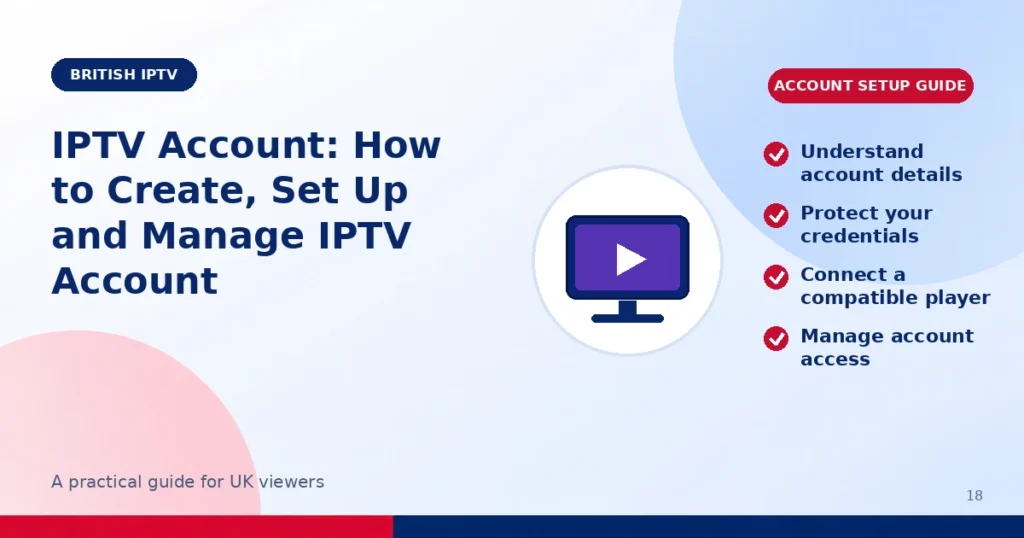
An IPTV account gives you access to television content delivered over an internet connection. Instead of using traditional cable or satellite equipment, you can connect a compatible IPTV service to a supported player and stream available channels, movies and other content on your devices.
However, setting up an account IPTV service can be confusing if you are new to IPTV. You may need to understand different login methods, subscription details, M3U playlists, Xtream Codes credentials and device compatibility before you can start watching.
This guide explains what an IPTV account is, how to create and activate one, how to connect it to an IPTV player, and what to do when your account stops working. Whether you use a Smart TV, Firestick, Android device, smartphone or computer, these steps will help you understand the process.
What Is an IPTV Account?
An IPTV account is a user account provided by an IPTV service that allows you to access its available streaming content. Depending on the provider, the account may include live television channels, movies, TV series, an electronic programme guide (EPG) and other features.
After purchasing or registering for a service, you may receive login credentials or a playlist URL. You use these details in a compatible IPTV player to connect your account and load the available content.
An IPTV account generally includes some or all of the following:
- Username: Identifies your account.
- Password: Protects access to your subscription.
- Server URL: The address used to connect your player to the service.
- M3U playlist: A URL or file containing stream information.
- Subscription period: Defines how long your access remains active.
- Connection allowance: Specifies how many devices or simultaneous streams are permitted.
The exact details depend on the service you choose. Some providers use a username and password, while others supply an M3U playlist or another supported login method.
How Does an IPTV Account Work?
An IPTV account connects a compatible application to an IPTV service through your internet connection.
The process is relatively simple:
- Choose an IPTV service that provides the content and features you need.
- Register or purchase a subscription through the provider.
- Receive your account credentials or playlist information.
- Install a compatible IPTV player on your device.
- Enter the supplied details into the application.
- Allow the player to connect and load the available content.
- Select a channel or programme to start streaming.
It is important to distinguish between an IPTV account and an IPTV player. The account provides access through a service, while the player is the application used to connect and watch the content. Installing a player alone does not automatically provide a channel subscription.
How to Create an IPTV Account
Creating an IPTV account usually involves choosing a service, registering your details and selecting a subscription. The exact process varies between providers, but the following steps explain what to expect.
Step 1: Choose a Suitable IPTV Service
Start by researching IPTV services and comparing their features. Do not choose a provider based only on the number of advertised channels.
Consider these factors:
- Content availability and channel selection
- Supported devices and applications
- Streaming quality and reliability
- Subscription duration and pricing
- Customer support availability
- Payment methods and refund policies
- Privacy and account security
- Whether the provider has the necessary rights to distribute its content
Check the provider’s terms and conditions before purchasing. A trustworthy service should clearly explain what is included in its subscription.
Step 2: Select a Subscription Plan
Once you have chosen a service, review its available subscription options.
Some providers offer monthly, quarterly, six-month and annual plans. Select a duration that suits your budget and viewing requirements.
Before completing your purchase, check:
- What content is included
- How long the subscription lasts
- How many connections are allowed
- Whether automatic renewal applies
- Whether a trial or refund policy is available
Avoid paying for a plan without understanding its conditions.
Step 3: Complete the Registration Process
Depending on the provider, you may need to submit basic account information, such as your email address or other required registration details.
Use accurate information and create a strong, unique password if the service allows you to set one.
Complete the registration and payment process through the provider’s official website or authorised payment channel.
Step 4: Receive Your IPTV Account Details
After registration or successful payment, the provider should explain how to access your account.
You may receive:
- Account username
- Account password
- Server URL
- M3U playlist URL
- Subscription activation information
- Instructions for connecting a compatible IPTV player
Keep these details somewhere secure. You will need them when setting up your account on a supported device.
How to Set Up an IPTV Account on Your Device
After receiving your account details, you can connect them to a compatible IPTV application. The setup process varies depending on your device and the player you use.
1. Set Up an IPTV Account on Firestick
Amazon Fire TV devices support various compatible streaming applications.
To connect your account:
- Turn on your Firestick and connect it to the internet.
- Find a compatible IPTV player through an available official app store or authorised installation method.
- Install and open the application.
- Select the appropriate login method.
- Enter your M3U playlist or Xtream Codes details if supported.
- Save the information and wait for the content to load.
Check the application’s current compatibility and installation instructions before downloading it.
2. Set Up an IPTV Account on Android TV
Android TV and Google TV devices offer access to compatible applications through their respective app stores.
Follow these steps:
- Open the Google Play Store.
- Search for a compatible IPTV player.
- Install and launch the application.
- Choose M3U or Xtream Codes login, depending on your provider.
- Enter your account information.
- Save the settings and allow the playlist to load.
Make sure the application supports your device and account connection method.
3. Set Up an IPTV Account on a Smart TV
Smart TV installation depends on the operating system and application availability.
For example, Samsung and LG televisions use different platforms and app stores. Not every IPTV player supports every Smart TV model.
The general process is:
- Connect your Smart TV to the internet.
- Open its official application store.
- Search for a compatible IPTV player.
- Install the application.
- Open the player and follow its account setup instructions.
- Enter your subscription details or playlist information.
- Load the available content.
If your preferred application is unavailable, you may be able to connect an external streaming device through HDMI.
4. Set Up an IPTV Account on an iPhone or iPad
You can use an IPTV application on an iPhone or iPad if it is available and compatible with your iOS version.
- Open the Apple App Store.
- Search for a compatible IPTV player.
- Install and launch the application.
- Select the supported playlist or login method.
- Enter your account details.
- Save the information and check whether the content loads.
Always review the application’s permissions and privacy information before using it.
5. Set Up an IPTV Account on Windows or Mac
You can also connect an IPTV account through a compatible desktop application or web player.
The basic process is:
- Choose a player that supports your operating system.
- Download it from its official source.
- Install and open the application.
- Select the appropriate connection method.
- Enter your M3U URL or account credentials.
- Save the configuration and test playback.
For browser-based access, make sure the web player supports your subscription format and use a trusted website.
IPTV Account Login Methods Explained
An IPTV service may provide different ways to connect your account. Understanding these methods makes it easier to choose a compatible player.
Xtream Codes Login
Xtream Codes is a commonly supported IPTV connection method. It generally requires three details:
- Username
- Password
- Server URL
Open a compatible IPTV player, choose the Xtream Codes login option and enter the information supplied by your provider.
The player then attempts to connect to the service and retrieve available content.
M3U Playlist Login
An M3U playlist is another common way to connect an IPTV account.
Your provider may supply an M3U URL that you can add to a compatible player. Some applications also allow you to upload an M3U file.
The general steps are:
- Open the IPTV application.
- Select Add Playlist or a similar option.
- Choose the M3U method.
- Enter the playlist URL or upload the file.
- Save the information.
- Wait for the channels and other supported content to load.
Portal or MAC-Based Activation
Some IPTV applications and services use portal-based activation. This may involve a device identifier or MAC address and a portal URL.
If your service uses this method, follow the application’s official setup instructions. Only provide device information to a service you trust.
How to Check Your IPTV Account Status
If you cannot access your content, first check whether your subscription is still active.
Depending on the provider, you may be able to check your account status through a customer dashboard, account portal or support team.
Look for the following information:
| Account detail | What to check |
| Subscription status | Active, expired or suspended |
| Expiry date | When your current plan ends |
| Username | Whether it matches your account |
| Password | Whether the credentials are correct |
| Connection limit | Number of permitted simultaneous streams |
| Playlist URL | Whether it is valid and current |
| Server address | Whether the supplied URL is correct |
If your provider does not offer an account dashboard, contact its official support channel to confirm your subscription status.
Common IPTV Account Problems and How to Fix Them
Even when an account is correctly configured, you may occasionally experience login or playback problems. Here are some common issues and their possible solutions.
1. IPTV Account Login Failed
Possible causes:
- Incorrect username or password
- Typing mistakes or extra spaces
- Expired subscription
- Incorrect server URL
How to fix it:
- Re-enter your credentials carefully.
- Copy the server URL directly from your provider.
- Check your subscription status.
- Contact support if the login still fails.
2. IPTV Account Expired
Possible cause: Your subscription period has ended.
How to fix it:
- Check the expiry date.
- Review your provider’s renewal options.
- Renew through the official payment channel if you want to continue.
- Confirm that your account has been reactivated before trying again.
3. IPTV Account Not Loading Channels
Possible causes:
- Invalid M3U playlist
- Incorrect login details
- Temporary server issue
- Unsupported playlist format
How to fix it:
- Refresh the playlist.
- Check whether the URL is correct.
- Confirm that your subscription is active.
- Try another compatible player if necessary.
- Contact your provider if the problem continues.
4. IPTV Account Keeps Buffering
Possible causes:
- Unstable internet connection
- Weak Wi-Fi signal
- Network congestion
- Problems with the stream source
How to fix it:
- Restart your router and streaming device.
- Use Ethernet where possible.
- Pause other bandwidth-heavy activities.
- Test another channel.
- Check whether your internet connection meets the stream’s requirements.
5. IPTV Account Not Working on Multiple Devices
Possible cause: Your subscription may have a limit on simultaneous connections.
How to fix it:
- Check your provider’s connection allowance.
- Close active streams on other devices.
- Sign out of devices you no longer use, if supported.
- Contact your provider to confirm the permitted connections.
Installing an IPTV player on several devices does not necessarily mean you can stream on all of them simultaneously.
How to Keep Your IPTV Account Secure
Your IPTV login information should be treated like any other online account credentials.
Follow these basic security practices:
- Use a strong, unique password.
- Do not share your login details publicly.
- Avoid entering credentials on unfamiliar websites.
- Use official applications and trusted download sources.
- Check the provider’s privacy policy and payment terms.
- Be cautious of services that request unnecessary personal information.
- Change your password if you suspect someone else has accessed your account.
Also, check whether your IPTV provider has clear contact information and legitimate distribution rights for the content it offers.
How to Choose the Right IPTV Account
Not every IPTV service offers the same experience. Before purchasing an account, compare providers carefully and consider your actual viewing needs.
Here are six important factors:
1. Content Selection: Check whether the service offers the channels and programmes you want to watch.
2. Device Compatibility: Make sure it supports your Firestick, Smart TV, Android device, iPhone or computer.
3. Streaming Reliability: Look for transparent information about service performance and investigate independent customer feedback.
4. Subscription Flexibility: Compare plan durations, renewal terms and cancellation conditions.
5. Customer Support: Choose a provider with clear contact details and a practical support process.
6. Security and Legitimacy: Check how the provider handles account information and whether it has the rights to distribute the content.
A lower subscription price does not always mean better value. Consider reliability, compatibility, customer service and transparency before making a decision.
Explore IPTV Subscription Options with British TV UK
Choosing an IPTV account starts with understanding the service, its supported applications and the subscription details you receive.
British TV UK provides information about IPTV subscription options, compatible applications and device setup. Before selecting a plan, review the current service details, supported connection methods, available content and subscription terms.
If you are planning to use IPTV on a Firestick, Smart TV, Android device or another compatible platform, explore the British TV UK website for relevant setup guidance and subscription information.
Frequently Asked Questions About IPTV Accounts
1. What is an IPTV account?
An IPTV account provides access to content from an IPTV service through a compatible player. It may include login credentials, a playlist URL and subscription information.
2. How do I create an IPTV account?
Choose a service, review its subscription terms, complete the registration or purchase process and receive your account details from the provider.
3. What details do I need to log in to an IPTV account?
Depending on the service, you may need a username, password and server URL, or an M3U playlist link.
4. Can I use one IPTV account on multiple devices?
It depends on your provider’s connection policy. Some subscriptions allow multiple devices, while others limit the number of simultaneous streams.
5. Is an IPTV account the same as an IPTV player?
No. An IPTV account provides access to a service, while an IPTV player is the application used to connect and play the available content.
6. Why is my IPTV account not working?
Incorrect credentials, an expired subscription, an invalid playlist, internet problems or service interruptions can prevent an account from working.
7. How can I check my IPTV account expiry date?
Check your provider’s account dashboard, subscription confirmation or contact its support team to confirm the expiry date.
8. Can I use an IPTV account on a Smart TV?
Yes, if your Smart TV supports a compatible IPTV application and your subscription provides a supported connection method.
9. What is the difference between an M3U playlist and Xtream Codes?
An M3U playlist connects through a playlist URL or file. Xtream Codes typically uses a username, password and server URL to connect to an IPTV service.
10. Do I need to renew my IPTV account?
If your subscription has a fixed expiry date, you generally need to renew it to continue accessing the service. Check the provider’s renewal and cancellation terms.