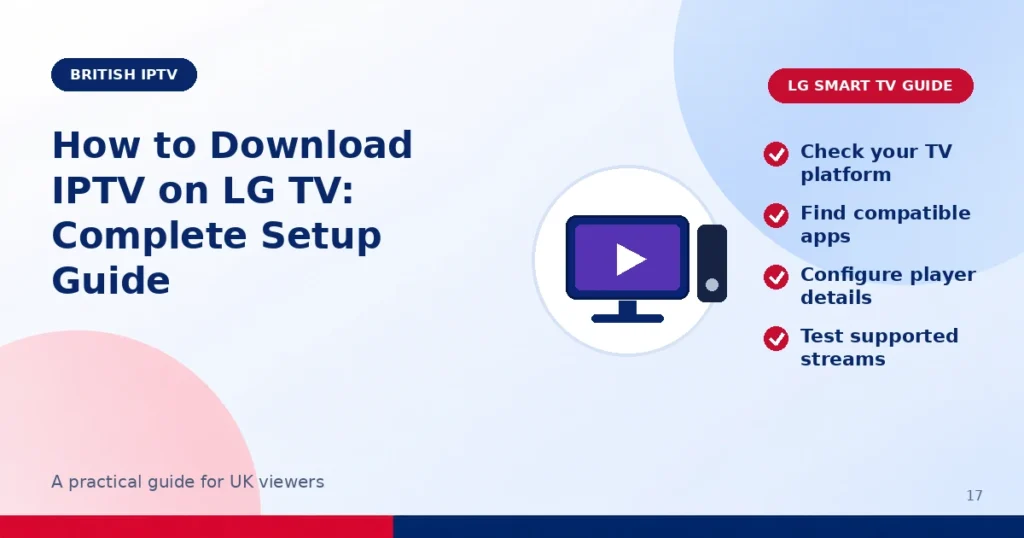
LG Smart TVs offer a convenient way to watch online television, movies and other streaming content without connecting an additional streaming box. If you want to use IPTV on an LG TV, you can usually install a compatible IPTV player through the LG Content Store, depending on your TV model, webOS version and region.
However, downloading an IPTV app is only one part of the process. You also need a compatible IPTV service or subscription and the correct login information to load your channels and playlists.
In this guide, you will learn how to download IPTV on LG TV, choose a compatible application, enter your subscription details and troubleshoot common installation problems. Whether you are setting up a new LG Smart TV or configuring an IPTV player you already have, these steps will help you get started.
What Is IPTV on LG TV?
IPTV stands for Internet Protocol Television. It delivers television content through an internet connection instead of relying exclusively on traditional cable or satellite broadcasting.
When you use IPTV on an LG Smart TV, you typically install an IPTV player that allows you to connect your subscription and access the content provided by your service.
It is important to understand the difference between an IPTV player and an IPTV subscription:
- IPTV player: The application used to load and play IPTV content.
- IPTV subscription: The service that provides access to channels or other content.
- M3U playlist: A file or URL containing IPTV stream information.
- Xtream Codes login: A connection method that usually requires a server URL, username and password.
An IPTV player does not necessarily provide channels by itself. You need a compatible playlist or service with the appropriate access details.
Can You Install IPTV on an LG Smart TV?
Yes, many LG Smart TVs support IPTV applications through the LG Content Store. However, app availability depends on your television model, webOS version, country and the application’s compatibility requirements.
LG Smart TVs generally use webOS rather than Android TV. This means you cannot automatically install every Android IPTV application on an LG television.
Before downloading an application, check the following:
- Your LG TV is connected to the internet.
- Your television supports the required webOS version.
- The IPTV application is available in your region.
- Your IPTV service supports the application or login method.
- Your TV software is updated.
If an IPTV app does not appear in the LG Content Store, it may not support your television or region. You should not assume that an Android APK can be installed directly on your LG Smart TV.
How to Download IPTV on LG TV
The easiest way to install IPTV on an LG Smart TV is through the official LG Content Store. Follow these steps to find and download a compatible application.
Step 1: Connect Your LG TV to the Internet
First, make sure your television has a working internet connection.
- Turn on your LG Smart TV.
- Press the Settings button on your remote.
- Open All Settings.
- Navigate to General or Network, depending on your webOS version.
- Select your Wi-Fi network or connect an Ethernet cable.
- Enter your Wi-Fi password if required.
- Confirm that your television is connected.
A stable internet connection helps IPTV applications load playlists and stream content properly.
Step 2: Open the LG Content Store
Once your television is connected, open the application store.
- Press the Home button on your LG remote.
- Open Apps or LG Content Store, depending on your webOS version.
- Select the search option.
- Enter the name of a compatible IPTV player.
- Review the available applications.
The exact menu names can differ between LG television models and webOS releases.
Step 3: Search for an IPTV Application
Search for an IPTV player that supports your LG Smart TV. Some IPTV applications may be available on selected LG models and in certain regions.
Examples of IPTV applications you may encounter include:
- Smart IPTV: An IPTV player available on supported television platforms and models.
- IBO Player: A media player with IPTV playlist support on compatible devices.
- SET IPTV: An IPTV player that may be available for supported Smart TV platforms.
- SS IPTV: An IPTV application with playlist features, subject to current platform and regional availability.
These are examples rather than guaranteed options for every LG television. Search the LG Content Store on your own TV to confirm which applications are currently available.
Step 4: Install the IPTV Application
After finding a compatible application:
- Select the application.
- Open its information page.
- Check its compatibility and description.
- Select Install.
- Wait for the download to finish.
- Return to the Home screen.
- Open the newly installed application.
If the Install option is unavailable, your TV may not support that application or it may not be available in your region.
Step 5: Open the IPTV Player
Launch the application after installation. Depending on the player, you may see an activation screen, playlist setup page or login section.
Some applications require you to register your television or obtain a device identifier before adding a playlist. Follow the instructions displayed by the application.
Keep in mind that some IPTV players charge a separate activation fee. Installing the application does not automatically activate a subscription or provide access to television channels.
How to Set Up IPTV on LG TV
After installing a compatible IPTV player, the next step is connecting your IPTV subscription.
Most applications support one or more connection methods, such as an M3U playlist or Xtream Codes credentials. The available options depend on the application and service.
Method 1: Set Up IPTV Using an M3U Playlist
An M3U playlist is a URL or file that contains information about IPTV streams.
Follow these steps:
- Open your IPTV application on the LG TV.
- Find the playlist or add playlist option.
- Select the M3U URL option if available.
- Enter the M3U playlist URL provided by your IPTV service.
- Save or submit the information.
- Wait for the playlist to load.
- Open the channel list and select available content.
Some applications require you to add the playlist through their website rather than directly on the television. In that case, follow the app’s official instructions.
Method 2: Set Up IPTV Using Xtream Codes
If your IPTV provider supports Xtream Codes, you may be able to connect using three details:
- Username: Your account username.
- Password: Your account password.
- Server URL: The server address supplied by your provider.
To connect:
- Open your IPTV player.
- Select the Xtream Codes or API login option.
- Enter your username.
- Enter your password.
- Add the server URL exactly as provided.
- Submit the details.
- Allow the application to retrieve the available content.
If your player does not offer Xtream Codes login, check whether it supports M3U playlists or another connection method.
Important: Only enter subscription details into an application you trust. Avoid sharing your login credentials with unknown websites or services.
Best IPTV Settings for LG Smart TV
Correct settings can improve the viewing experience, especially when streaming high-resolution content. However, the ideal configuration depends on your IPTV application, internet connection and television.
Consider these settings:
| Setting | Recommended approach |
| Internet connection | Use stable Wi-Fi or Ethernet |
| Video quality | Select a quality supported by your connection |
| Player type | Use the default player first |
| Hardware acceleration | Enable only if supported and stable |
| Aspect ratio | Choose Auto or Original |
| Buffer settings | Keep default settings unless troubleshooting |
| EPG | Refresh the TV guide if supported |
| App updates | Install available official updates |
If your IPTV application offers a built-in player and external player options, start with the default setting. Change it only if you experience playback problems or the application recommends another option.
How to Fix IPTV Not Working on LG TV
Sometimes an IPTV application may fail to install, load channels or play streams. The issue can be related to the television, application, internet connection or IPTV service.
Here are common problems and practical solutions.
1. IPTV App Not Showing in LG Content Store
Possible reason: The application may not be available for your LG TV model, webOS version or country.
Solution:
- Check the TV’s software version.
- Search for alternative compatible IPTV players.
- Confirm the application’s supported devices.
- Check the app’s official availability information.
Do not download random installation files from untrusted websites.
2. IPTV Playlist Not Loading
Possible reason: The M3U URL may be incorrect, expired or unsupported by the application.
Solution:
- Check the playlist URL carefully.
- Confirm that your subscription is active.
- Contact your provider to verify the playlist.
- Try refreshing or reloading the playlist.
- Confirm that your IPTV player supports the playlist format.
3. IPTV Channels Keep Buffering
Possible reason: Slow internet, network congestion, weak Wi-Fi or an issue with the stream source can cause buffering.
Solution:
- Restart your router and LG TV.
- Move your TV closer to the Wi-Fi router.
- Use an Ethernet connection if possible.
- Pause other internet-intensive downloads.
- Try a lower video resolution if available.
4. IPTV Application Keeps Crashing
Possible reason: The application may have a software issue, compatibility problem or corrupted temporary data.
Solution:
- Restart your television.
- Check for application updates.
- Update your LG TV software.
- Close and reopen the IPTV player.
- Reinstall the application if the problem continues.
5. IPTV Login Details Are Not Working
Possible reason: Your username, password or server URL may be incorrect, or your subscription may have expired.
Solution:
- Re-enter your credentials carefully.
- Check for extra spaces or typing mistakes.
- Confirm the server URL with your provider.
- Verify your subscription status.
- Contact your provider if the details still fail.
6. No Sound or Video on IPTV
Possible reason: The stream format, audio track or player settings may not be compatible with your television.
Solution:
- Try another channel to check whether the issue affects all streams.
- Check the TV’s volume and audio output.
- Change the audio track if the player offers that option.
- Restart the application.
- Contact the service provider if only specific streams fail.
Can You Use IPTV on an Older LG TV?
Yes, you may be able to use IPTV on an older LG Smart TV, but application support depends on its webOS version and available apps.
If your television does not support the IPTV application you want, consider using an external streaming device.
Possible alternatives include:
- Amazon Fire TV Stick: Connects through HDMI and supports compatible IPTV applications.
- Android TV or Google TV device: Offers access to supported applications through its app store.
- Apple TV: Can run IPTV applications available for tvOS.
- Computer connected through HDMI: Allows you to use a compatible IPTV application or web player on a larger screen.
An external device can be a practical solution when your LG TV’s built-in application store does not offer a suitable IPTV player.
LG Smart TV vs External Streaming Device for IPTV
Should you use the built-in LG Smart TV system or connect an external streaming device? Both options have advantages.
| Feature | LG Smart TV | External streaming device |
| Installation | Through supported LG apps | Through its own app store |
| Extra hardware | Not usually required | Required |
| App selection | Depends on webOS and region | Depends on device platform |
| Updates | Managed through LG | Managed through device manufacturer |
| Compatibility | Limited to supported webOS apps | Depends on the external device |
| Setup | Directly on the TV | Connect device through HDMI |
If your LG TV supports your preferred IPTV player, the built-in option is usually the simplest. If the app is unavailable or incompatible, an external streaming device may provide more flexibility.
Tips for a Better IPTV Experience on LG TV
A few simple steps can help you avoid common setup and streaming problems.
- Use a reliable internet connection: A stable connection is important for consistent playback.
- Keep webOS updated: Install official firmware updates when available.
- Choose a compatible IPTV player: Check its requirements before installing.
- Protect your login details: Keep your subscription credentials private.
- Refresh your playlist: Reload the playlist if channels or programme information do not appear.
- Check your subscription: Confirm that your service is active and supports your selected player.
- Restart when necessary: Rebooting your TV and router can resolve temporary connection issues.
Get Your IPTV Subscription Working on LG TV with British TV UK
Once you have installed a compatible IPTV player, you need a subscription that supports your preferred connection method and device.
British TV UK provides information about IPTV subscription options, supported applications and installation guidance. Before choosing a plan, check the service’s current channel offering, supported devices, connection requirements and terms.
If you are planning to use IPTV on an LG Smart TV, make sure the service supports a playlist or login method compatible with an IPTV application available on your television.
Visit British TV UK to explore the available subscription information and find the setup guidance you need to get started.
Frequently Asked Questions
1. How do I download IPTV on LG TV?
Open the LG Content Store or Apps section, search for a compatible IPTV player, select it and choose Install. Availability depends on your TV model, webOS version and region.
2. Can I install IPTV on an LG Smart TV?
Yes. Many LG Smart TVs support IPTV applications through the LG Content Store. However, not every IPTV app is compatible with every LG television.
3. Which IPTV app is best for LG TV?
The best option depends on your LG TV model, webOS version, region and preferred login method. Check the LG Content Store for currently supported applications.
4. Can I install IPTV Smarters on LG TV?
IPTV Smarters availability depends on the television model, webOS version and regional app store. Check the official LG app store rather than assuming the Android version will work on webOS.
5. How do I add an M3U playlist to my LG TV?
Open a compatible IPTV player, find its playlist settings and enter the M3U URL supplied by your IPTV provider. Some apps require playlist setup through their official website.
6. Can I use Xtream Codes on LG Smart TV?
Yes, if your selected IPTV application supports Xtream Codes login. You will generally need a username, password and server URL from your provider.
7. Why is IPTV not working on my LG TV?
Common causes include an unsupported application, incorrect login details, an expired playlist, internet problems or a service-side issue. Check each one before reinstalling the app.
8. Can I watch IPTV on an older LG TV?
You may be able to, provided the television supports a compatible IPTV application. Otherwise, connect an external streaming device through HDMI.
9. Do I need an IPTV subscription to use an IPTV app on LG TV?
Usually, yes, if you want to watch subscription-based IPTV channels. The player handles playback, while the subscription or playlist provides access to the content.
10. Can I download Android IPTV APKs directly on LG TV?
Generally, no. LG Smart TVs use webOS, which does not natively install standard Android APK files. Use applications supported by the LG Content Store or a compatible external streaming device.