Having trouble connecting your Firestick remote to your television? Whether you are setting up a new Amazon Fire TV Stick, replacing an old remote, or trying to get the volume and power buttons working, the pairing process is usually straightforward once you know which settings to use.
However, there is one important detail to understand: pairing your Firestick remote with your Fire TV Stick is not always the same as setting it up to control your television. The first connection lets you navigate the Fire TV interface, while equipment control settings allow compatible remotes to operate functions such as TV power and volume.
In this guide, British TV UK explains how to pair a Firestick remote to your TV, connect a replacement remote, troubleshoot common pairing problems, and prepare your Fire TV device for IPTV streaming.
Whether you use a Fire TV Stick, Fire TV Stick 4K, Fire TV Stick 4K Max, or a compatible Fire TV television, follow the instructions below to get started.
What Do You Need Before Pairing a Firestick Remote?
Before starting, make sure you have everything required for the setup.
- An Amazon Fire TV Stick or compatible Fire TV device.
- A compatible Fire TV remote.
- Two working AAA batteries, if required by your remote.
- A television with an available HDMI port if you are using a Fire TV Stick.
- A working power supply for your Fire TV device.
It is also important to check that your replacement remote is compatible with your particular Fire TV model. Not every Fire TV remote works with every Fire TV device.
If you are using a Fire TV Stick, connect it to your television’s HDMI port and make sure it has power. Select the correct HDMI input using your television’s original remote if necessary.
How to Pair a Firestick Remote to TV for the First Time
If you have just purchased a Fire TV Stick, the original remote will often pair automatically during the initial setup.
Follow these steps:
Step 1: Insert the batteries
Open the battery compartment on the back of your Firestick remote. Insert the batteries according to the positive and negative markings.
Step 2: Connect your Fire TV Stick
Plug your Fire TV Stick into an available HDMI port on your television. Connect its power cable and adapter, preferably using the supplied power adapter rather than a television USB port.
Step 3: Turn on your television
Switch your TV to the HDMI input where the Fire TV Stick is connected. You should see the Fire TV setup screen.
Step 4: Allow the remote to connect
Your remote may pair automatically after the batteries are inserted and the Fire TV device starts. Follow any instructions displayed on the screen.
Step 5: Test the remote
Use the navigation buttons to move around the Fire TV menu. Press Home to return to the main screen and confirm that the remote responds.
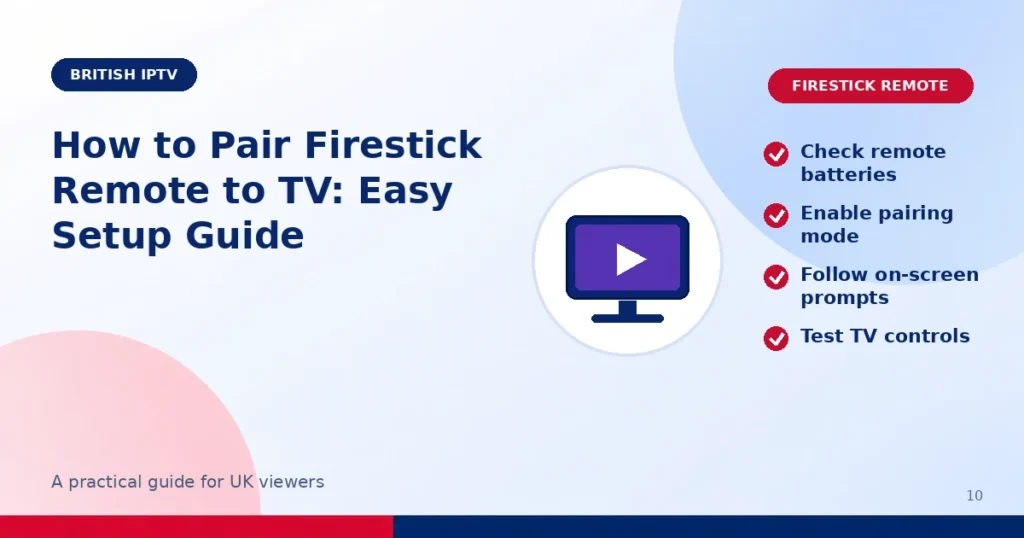
If the remote does not connect automatically, press and hold the Home button for approximately 10 seconds while keeping the remote close to the Fire TV device.
Once pairing is successful, you should be able to navigate the Fire TV interface.
How to Pair a Replacement Firestick Remote
If your original remote is damaged, lost, or no longer responding, you can pair a compatible replacement.
There are two common ways to do this.
Method 1: Pair a New Remote Using Your Existing Remote
If your old Firestick remote still works, you can add another remote through the Fire TV settings.
- Turn on your Fire TV.
- Open Settings.
- Select Controllers and Bluetooth Devices.
- Choose Amazon Fire TV Remotes.
- Select Add New Remote.
- Insert batteries into your replacement remote.
- Press and hold its Home button for approximately 10 seconds if it does not appear automatically.
- Select the new remote from the list when it appears.
Your replacement remote should now be connected.
Method 2: Pair a Replacement Remote Without the Old Remote
Do not worry if your original remote is lost or completely broken. You may still be able to connect a compatible replacement.
- Unplug your Fire TV device from its power supply.
- Wait a few seconds.
- Reconnect the Fire TV device.
- Wait for the remote detection message or setup screen.
- Insert working batteries into the replacement remote.
- Press and hold the Home button for approximately 10 seconds.
- Wait for the Fire TV device to detect the remote.
If pairing does not start, try the troubleshooting steps later in this guide.
Amazon also provides instructions for adding another remote and pairing a replacement: Pair Another Fire TV Remote.
How to Pair Your Firestick Remote to Control TV Volume and Power
This is where many Firestick users get confused.
Your Fire TV remote may already control the Fire TV Stick but still fail to turn your television on or off or adjust its volume.
That is because these controls may require a separate equipment setup. On compatible Alexa Voice Remotes, Fire TV uses equipment control settings to configure TV and soundbar functions.
Follow these steps:
- Open Settings on your Fire TV.
- Select Equipment Control.
- Choose Manage Equipment.
- Select TV.
- Follow the on-screen instructions to identify your television brand.
- Complete the remote-control test.
- Test the power and volume buttons.
The available options and menu names can vary by Fire TV model and software version.
If your television is not responding, repeat the equipment setup and check that you selected the correct TV brand. Some setups may offer additional infrared profile options.
Important: Not every Fire TV remote includes TV power and volume controls. These features depend on the remote model and device compatibility.
How to Pair a Firestick Remote Using Your Smartphone
If your physical remote is missing or not working, the Amazon Fire TV mobile app can provide an alternative way to control your Fire TV.
This is especially useful when you need to navigate the settings menu to connect another remote.
Follow these steps:
- Install the official Amazon Fire TV app on your compatible smartphone.
- Connect your phone and Fire TV device to the same Wi-Fi network.
- Open the app.
- Select your Fire TV device when it appears.
- Follow the on-screen instructions to connect.
- Use the app’s navigation controls to open Fire TV settings.
- If supported, go to Controllers and Bluetooth Devices.
- Select Amazon Fire TV Remotes, followed by Add New Remote.
- Follow the instructions to pair your replacement remote.
The Fire TV app does not turn an incompatible remote into a compatible one. You still need a remote model supported by your Fire TV device.
For additional instructions, see Amazon’s Fire TV App Remote Pairing Guide.
Firestick Remote Not Pairing? 8 Ways to Fix It
Sometimes, your Firestick remote may refuse to connect even after following the normal setup process.
Before buying another remote, try these troubleshooting solutions.
1. Check or Replace the Batteries
Low batteries are a common reason for an unresponsive remote.
Remove the existing batteries and check that they are installed correctly. If necessary, replace them with a fresh pair of suitable AAA batteries.
Avoid mixing old and new batteries.
2. Move Closer to Your Fire TV Device
Keep your remote within approximately 10 feet (3 metres) of your Fire TV device while pairing.
Remove objects that may obstruct the connection and try again.
3. Restart Your Fire TV Stick
A temporary device issue can sometimes prevent a remote from pairing.
Unplug your Fire TV Stick from its power supply, wait several seconds, and reconnect it. Once the Fire TV screen appears, press and hold the Home button on your remote for approximately 10 seconds.
4. Press and Hold the Home Button
If your remote is not detected automatically, press and hold its Home button for around 10 seconds.
Keep the remote close to your Fire TV device and wait for the pairing confirmation.
5. Check Remote Compatibility
Not every third-party or replacement remote is compatible with every Fire TV model.
Check the exact model number of your Fire TV device and compare it with the replacement remote’s compatibility information before attempting another pairing.
6. Reset Your Firestick Remote
If the usual pairing steps do not work, you may need to reset your remote.
For many Fire TV remotes, Amazon recommends this general reset procedure:
- Unplug your Fire TV device from power and HDMI.
- Wait approximately 60 seconds.
- Press and hold the Left, Menu, and Back buttons together for 12 seconds.
- Release the buttons and wait five seconds.
- Remove the batteries from the remote.
- Reconnect your Fire TV device and wait for the remote detection message.
- Reinsert the batteries.
- Press the Home button to pair the remote.
The reset procedure differs for some older remote models, so check the instructions for your specific remote before proceeding.
See Amazon’s official Fire TV Remote Reset Guide.
7. Remove an Existing Remote if Necessary
Fire TV devices have a limit on the number of paired controllers. If you already have several remotes or controllers connected, you may need to remove one before adding another.
Open your remote settings, select an existing controller, and remove it if it is no longer needed.
8. Check for a Faulty Remote or Device
If your remote still does not pair after replacing the batteries, restarting the Fire TV, and following the reset process, the remote or Fire TV device may have a hardware problem.
Try a compatible remote if one is available. You can also use the Fire TV mobile app as a temporary control method if your device supports it.
If neither option works, contact Amazon support.
How to Set Up Firestick for IPTV Streaming
Once your Firestick remote is paired, you can use it to navigate the Fire TV interface, connect to the internet, and install compatible applications.
If you plan to use IPTV, complete the basic device setup first.
Step 1: Connect Your Firestick to Wi-Fi
Open your Fire TV network settings and select your home Wi-Fi network. Enter your password and wait for the connection confirmation.
A stable connection is important for smooth streaming.
Step 2: Update Your Fire TV Software
Check for available software updates in your device settings. Keeping your Fire TV software current can help with application compatibility and device performance.
Step 3: Choose a Compatible IPTV Player
An IPTV player is an application used to play compatible television streams. The player itself does not necessarily provide a subscription or channel access.
Check which applications and devices your IPTV provider supports before installing a player.
Step 4: Enter Your IPTV Account Details
If your provider supports the player you have selected, follow its instructions to add your account.
Depending on the application, you may need an M3U playlist URL, an Xtream Codes login, or another supported connection method.
Only enter account information into applications and services you trust.
Step 5: Test Your IPTV Setup
After adding your details, allow the player to load the available content. Test a channel or other authorised stream to confirm that playback works.
If you experience buffering, check your internet connection, device performance, and stream compatibility.
For more detailed instructions, explore the IPTV installation guidance available on British TV UK.
Common Firestick Remote Problems and Their Solutions
| Problem | Possible reason | What to do |
| Remote does not connect | Pairing issue or low batteries | Replace batteries and hold Home |
| Remote connects, but buttons do not respond | Temporary software issue | Restart Fire TV |
| Volume buttons do not work | TV equipment control not configured | Set up TV under Equipment Control |
| Power button does not control TV | Incorrect TV configuration or unsupported remote | Repeat equipment setup and check compatibility |
| Replacement remote is not detected | Incompatible remote or pairing issue | Check compatibility and retry pairing |
| Remote works intermittently | Low batteries or connection interference | Replace batteries and move closer |
| Remote light flashes but pairing fails | Remote or device pairing problem | Reset the remote and restart Fire TV |
Frequently Asked Questions
1. How do I pair a Firestick remote to my TV?
Insert working batteries, turn on your Fire TV device, and wait for automatic pairing. If it does not connect, press and hold the Home button for approximately 10 seconds.
2. How do I pair a new Firestick remote without the old one?
Restart your Fire TV device, insert batteries into the compatible replacement remote, and press and hold the Home button for approximately 10 seconds when the device is ready to detect a remote.
3. Why is my Firestick remote not pairing?
Possible reasons include low batteries, an incompatible remote, distance from the Fire TV device, or a temporary pairing issue. Replace the batteries, restart the device, and try pairing again.
4. How do I connect my Firestick remote to control TV volume?
Open Settings, select Equipment Control, choose Manage Equipment, and follow the TV setup instructions. Your remote must support TV control for this feature to work.
5. Can I use my phone as a Firestick remote?
Yes. You can use the official Amazon Fire TV app on a compatible smartphone. Your phone and Fire TV device generally need to be connected to the same Wi-Fi network.
6. How long should I hold the Home button to pair my Firestick remote?
For many Fire TV remotes, holding the Home button for approximately 10 seconds starts the pairing process. Follow the on-screen instructions for your particular device.
7. Will any Firestick remote work with my Fire TV Stick?
No. Remote compatibility varies by model and generation. Check Amazon’s compatibility information before purchasing a replacement remote.
8. Do I need to pair my Firestick remote again to use IPTV?
No. Once your Firestick remote is connected to your Fire TV device, you can use it to navigate compatible IPTV applications. You do not need to pair it separately with each IPTV player.
Get Your Firestick Ready for IPTV with British TV UK
Pairing your Firestick remote is an important first step when setting up your streaming device. Once the remote is connected, you can complete the Fire TV setup, configure your television controls, connect to Wi-Fi, and install compatible applications.
If you are preparing your Firestick for IPTV, make sure your chosen player supports your device and that you have the correct account details from your service provider.
Visit British TV UK to explore our IPTV information, subscription options, and installation guidance. Check the current service details and supported setup methods before choosing a subscription.