Want to watch British IPTV on your iPhone or iPad? You do not need a television or a separate streaming box to get started. With a compatible IPTV player, an active subscription, and a stable internet connection, you can access your authorised IPTV content directly from your Apple device.
Whether you want to watch television while travelling, enjoy your favourite programmes on an iPad, or use your iPhone for convenient viewing around the house, the setup process is relatively simple. You mainly need to choose a suitable IPTV player, install it through the App Store, and enter the connection details provided by your IPTV service.
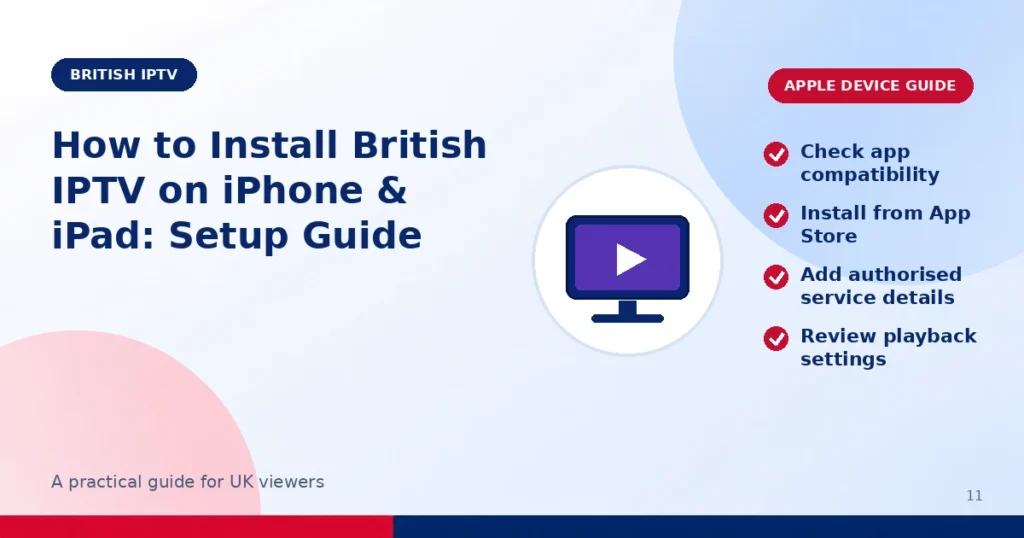
In this guide, British TV UK explains how to install British IPTV on an iPhone or iPad, add your subscription using an M3U playlist or Xtream Codes login, configure your player, and fix common streaming problems.
We will also explain how to use AirPlay to watch compatible streams on a larger screen and what to check before using mobile data.
Can You Watch British IPTV on an iPhone or iPad?
Yes. You can watch IPTV on an iPhone or iPad by installing a compatible player from Apple’s App Store and connecting it to an IPTV source you are authorised to access.
The player is the application that displays your television streams. Your IPTV service or subscription supplies the content access details. These are separate things, so downloading an IPTV player does not automatically give you access to channels.
Depending on the player and subscription, you may be able to access:
- Live television channels
- Available sports and entertainment streams
- Movies and on-demand content
- TV series and programme collections
- Electronic Programme Guide (EPG) information
- Channel categories and favourites
The exact content and features depend on your subscription, the player you choose, and the rights and availability of the streams.
The same general installation process works on both iPhone and iPad, although the layout of an application may look slightly different depending on your device and screen size.
What Do You Need Before Installing British IPTV?
Before starting the installation, prepare a few things to make the process easier.
1. An iPhone or iPad
You need an Apple device that supports the IPTV player you intend to use. Check the app’s current App Store listing for its minimum iOS or iPadOS requirements.
It is also a good idea to install available system updates before setting up your player.
2. A Stable Internet Connection
Your iPhone or iPad needs an internet connection to load playlists and stream content.
Wi-Fi is generally a convenient choice for longer viewing sessions. You can also use mobile data if your network connection and subscription allow it, but remember that video streaming can consume a significant amount of data.
3. An IPTV Subscription or Authorised Playlist
You need valid access details from your IPTV provider. Depending on the service and player, these may include:
- M3U playlist URL
- Xtream Codes server URL
- Username
- Password
- EPG URL, if supplied separately
You do not necessarily need every item. The required information depends on the connection method supported by your IPTV player.
4. A Compatible IPTV Player
Choose an application that supports your subscription’s connection format.
Some IPTV players available on Apple devices include:
- IPTV Smarters Player Lite
- GSE Smart IPTV
- IPTVX
- UHF – IPTV Client
These are examples of player applications, not British TV UK-owned applications or included channel packages. Their availability, pricing, features, and compatibility can change. Check the current App Store listing in your country before installing one.
How to Install British IPTV on iPhone: Step-by-Step Guide
Setting up IPTV on an iPhone is straightforward when you have your subscription details ready.
Follow these steps to install a compatible player and connect your IPTV account.
Step 1: Open the Apple App Store
Unlock your iPhone and find the App Store on your Home Screen.
Tap the App Store icon and use the search option to find an IPTV player.
You can search for a player such as IPTV Smarters Player Lite, GSE Smart IPTV, IPTVX, or another compatible application.
Before downloading, check:
- The application supports your iOS version.
- The player accepts your IPTV login format.
- The developer and app details look legitimate.
- Any subscription or in-app purchase requirements are clear.
- The app has the features you actually need.
Step 2: Download and Install an IPTV Player
Once you have selected a suitable player, tap Get or the displayed download option.
Depending on your Apple Account settings, you may need to confirm the download with Face ID, Touch ID, or your account password.
Wait for the installation to finish. You should then see the application on your Home Screen or in your App Library.
Open the application to begin configuring your IPTV connection.
Step 3: Choose Your IPTV Login Method
Most IPTV services provide one or more connection methods. Two common options are M3U playlists and Xtream Codes login.
Option A: Xtream Codes API
If your provider supplies a server URL, username, and password, select an option such as:
- Login with Xtream Codes API
- Xtream Codes
- Add User
- Add Playlist
The exact wording depends on your application.
Option B: M3U Playlist URL
If your provider gives you an M3U link, choose an option such as:
- Add M3U Playlist
- M3U URL
- Load Playlist
- Add by URL
Both methods can be used to connect compatible IPTV players to an authorised source. You should choose the method your provider supports.
Step 4: Enter Your British IPTV Subscription Details
After selecting your connection method, enter the details supplied by your IPTV provider.
For an Xtream Codes connection, the fields commonly include:
| Field | Information required |
| Playlist name | A name you choose, such as British TV |
| Server URL | The server address provided by your service |
| Username | Your supplied account username |
| Password | Your supplied account password |
For an M3U connection, you generally need to paste the complete playlist URL into the relevant field.
Important: Copy and paste your login information whenever possible. Manually typing long URLs or passwords on an iPhone keyboard can lead to mistakes.
Check for missing characters, accidental spaces, and incorrect capitalisation before saving.
Step 5: Save Your Playlist and Load the Channels
Once you have entered the correct details, tap Add, Save, Login, or the corresponding option in your player.
The application will attempt to connect to your source and retrieve the available playlist information.
Depending on the service and player, this may include:
- Live TV categories
- Channel names and logos
- Movies and series
- EPG or programme schedules
- Favourites and playlist information
The first loading process may take longer if the playlist contains a large number of entries.
Wait until the application finishes loading before switching between sections.
Step 6: Start Watching British IPTV on Your iPhone
After the playlist loads, open the Live TV or channel section.
Select an available channel and press Play.
If the stream is compatible and your connection is stable, playback should begin. You can then explore other available categories, use the search feature, and add frequently watched channels to your favourites if your player supports it.
Your setup is complete once you can open and play an authorised stream successfully.
How to Install British IPTV on an iPad
The process for installing British IPTV on an iPad is almost identical to the iPhone setup.
The main difference is the larger display, which can make browsing channel lists, programme information, and video content more comfortable.
Follow these steps:
- Open the App Store on your iPad.
- Search for an IPTV player compatible with your iPadOS version.
- Download and install the application.
- Open the player.
- Select M3U playlist or Xtream Codes login, depending on your subscription.
- Enter your server URL, username, password, or playlist link.
- Save your connection details.
- Allow the application to load the available content.
- Select a channel or video to test playback.
You can use the same general instructions for both devices, provided the application supports your particular iPhone or iPad.
If you already use an IPTV player on your iPhone, check whether its developer offers an iPad version or supports syncing playlists between devices. You may still need to configure your account separately.
How to Watch British IPTV on Your TV Using iPhone or iPad
You may prefer watching content on a larger television rather than holding your iPhone or iPad.
If your player supports AirPlay, you can send compatible video to an Apple TV or an AirPlay-compatible Smart TV.
Method 1: Use AirPlay from Your IPTV Player
- Connect your iPhone or iPad and receiving television to the same Wi-Fi network.
- Open your IPTV player.
- Select an available stream.
- Look for the AirPlay icon in the playback controls.
- Tap the icon.
- Choose your Apple TV or compatible television.
- Wait for the connection and confirm that the video appears on the larger screen.
Not every IPTV player or stream supports AirPlay, so check the application’s features first.
Method 2: Use Screen Mirroring
If your player does not provide a separate AirPlay button, you may be able to mirror your screen.
- Open Control Centre on your iPhone or iPad.
- Tap Screen Mirroring.
- Select your compatible Apple TV or television.
- Wait for the devices to connect.
- Open your IPTV player and start playback.
Screen mirroring displays your device’s screen on the television. It is not the same as direct AirPlay video playback, and results may vary depending on the application and receiving device.
If an application asks for permission to discover devices on your local network, review the request. Apple explains that you can manage this permission through Settings → Privacy & Security → Local Network. https://support.apple.com/en-ie/102229
M3U Playlist vs Xtream Codes: Which Should You Use on iPhone?
When setting up an IPTV player, you may be asked whether you want to connect through an M3U playlist or Xtream Codes API.
Both methods can work, but they use different types of login information.
| Feature | M3U Playlist | Xtream Codes API |
| Login method | Playlist URL | Server URL, username, and password |
| Setup | Paste the supplied link | Enter the three account fields |
| Channel loading | Depends on playlist contents | Depends on service and player support |
| EPG | May be included or supplied separately | May be provided through supported account data |
| Compatibility | Requires M3U support | Requires Xtream Codes support |
Which is better?
There is no universal winner. Use the connection method your provider supplies and your chosen IPTV player supports.
If your provider offers both, check its setup instructions to understand which method is recommended for your account.
How Much Internet Data Does IPTV Use on iPhone and iPad?
If you watch IPTV using mobile data instead of Wi-Fi, it is important to understand how much data streaming can consume.
Actual usage depends on video resolution, bitrate, compression, and the stream itself. Higher-quality video generally uses more data.
The following figures are illustrative estimates, not guaranteed usage rates.
| Video quality | Approximate data use per hour |
| SD | 0.5–1 GB |
| HD | 1–3 GB |
| Full HD | 2–4 GB |
| 4K | 4–7 GB or more |
To avoid using your mobile data allowance too quickly:
- Connect to Wi-Fi whenever possible.
- Choose a lower stream quality if your player offers that option.
- Check your mobile data usage in iPhone or iPad settings.
- Avoid leaving streams running when you are not watching.
- Check your mobile plan’s data allowance before travelling.
If you regularly watch live television or longer programmes, Wi-Fi is often the more practical option.
Common British IPTV Problems on iPhone and iPad and How to Fix Them
Even after completing the setup, you may occasionally experience problems with login, playlist loading, or playback.
Here are some common issues and their possible solutions.
1. IPTV Login Failed
If your IPTV player displays a login error, first check your account information.
- Confirm the server URL is correct.
- Check your username and password.
- Remove any accidental spaces.
- Make sure the account has not expired.
- Confirm that your subscription supports the selected login method.
If everything appears correct, contact your provider to verify your account details.
2. IPTV Playlist Not Loading
A playlist may fail to load if the URL is incorrect, expired, or temporarily unavailable.
Copy the original M3U link again and paste it into the player. Make sure you have selected M3U rather than Xtream Codes, or the reverse, depending on your supplied details.
If the problem continues, ask your provider to check the playlist.
3. IPTV Keeps Buffering on iPhone
Buffering can happen because of an unstable Wi-Fi connection, weak mobile signal, network congestion, or an issue with the stream source.
Try these steps:
- Move closer to your Wi-Fi router.
- Restart your internet router.
- Switch between Wi-Fi and mobile data to compare playback, keeping your data allowance in mind.
- Close unnecessary applications.
- Try another available stream.
- Restart your IPTV player.
If only one channel buffers, the problem may be specific to that stream rather than your iPhone.
4. IPTV App Keeps Crashing
An application may crash because of outdated software, temporary app errors, or insufficient available device resources.
Try updating the IPTV player through the App Store. Also check whether an iOS or iPadOS update is available.
If the issue continues, restart your device. Reinstalling the application may help, but make sure you have your login details and playlist information before removing it.
5. IPTV Channels Are Not Showing
If your playlist loads but the channel list is empty, check whether the account details were entered correctly.
You can also:
- Refresh the playlist if the player offers that option.
- Check your internet connection.
- Confirm that your account is active.
- Check whether the provider has supplied the correct playlist format.
- Contact support if the channel list remains empty.
6. AirPlay Is Not Working
If you cannot send your stream to a television, check that both devices support the required AirPlay feature and are connected to the same Wi-Fi network.
Also check whether your IPTV player supports AirPlay and has permission to access your local network where required.
If the problem continues, restart both devices and try again.
Tips for a Better British IPTV Experience on iPhone and iPad
Once your IPTV player is working, a few simple practices can make everyday viewing easier.
- Keep your device updated: Install relevant iOS or iPadOS updates.
- Use a trusted IPTV player: Download applications through the official App Store.
- Protect your login details: Do not share M3U URLs, passwords, or account information publicly.
- Use a stable connection: Choose reliable Wi-Fi for longer streaming sessions.
- Manage mobile data: Monitor usage if you watch through a cellular connection.
- Organise your channels: Use favourites and categories when your player supports them.
- Check app compatibility: Confirm that your player supports your iPhone or iPad and your subscription format.
- Review your subscription terms: Understand the content, device limits, and usage conditions provided by your service.
Why Explore British TV UK for Your IPTV Setup?
Choosing an IPTV service is not only about installing an application. You should also understand how the subscription works, which devices and players are supported, what content is available, and what setup assistance is provided.
British TV UK provides information for users exploring British IPTV and compatible streaming setups.
Before choosing a subscription, consider:
- Whether the service supports your preferred device.
- Which IPTV player or connection method is recommended.
- Whether your account uses an M3U playlist or Xtream Codes login.
- What content is included under the current service terms.
- How to get help if you experience setup or playback problems.
If you are considering British TV UK, visit our website to explore the available subscription information and installation guidance. Check the current compatibility details before purchasing so you can choose a suitable setup for your iPhone or iPad.
Frequently Asked Questions
1. Can I install British IPTV on an iPhone?
Yes. Install a compatible IPTV player from the App Store, then add the M3U playlist or Xtream Codes details supplied by your IPTV provider.
2. How do I install IPTV on an iPad?
Open the App Store, download an IPTV player that supports your iPadOS version, enter your subscription details, and wait for the playlist to load.
3. Which IPTV player is best for iPhone?
The best player depends on your preferred interface, supported login format, and features. Compare current App Store options and choose one that supports your IPTV subscription.
4. Can I watch IPTV on an iPhone without an app?
A browser may open certain individual streaming links, but a dedicated IPTV player is generally more suitable for managing playlists, channel categories, and programme guides.
5. Can I use the same IPTV subscription on iPhone and iPad?
That depends on your provider’s subscription terms and device limits. Check whether your plan allows multiple devices or simultaneous connections.
6. Can I watch IPTV on my television using an iPhone?
Yes, if your IPTV player and television support AirPlay or screen mirroring. You can also use a compatible player installed directly on your television.
7. Why is IPTV buffering on my iPhone?
Possible causes include weak Wi-Fi, an unstable mobile connection, network congestion, device performance, or problems with the stream source. Test another connection or channel to narrow down the cause.
8. Does IPTV work on both iPhone and iPad?
Yes. Many IPTV players support both devices, but you should check the individual App Store listing for compatibility and system requirements.
9. Do IPTV apps come with channels?
Not necessarily. Many IPTV player applications only play content from a playlist or subscription you supply. The app and content service are separate.
10. Is it safe to install an IPTV player on an iPhone?
Download players through the official App Store, review the developer and privacy information, and avoid sharing your account details with untrusted websites or applications.
Start Your British IPTV Setup on iPhone or iPad
Installing British IPTV on an iPhone or iPad does not have to be complicated. Once you have a compatible player and the correct subscription details, you can add your M3U playlist or Xtream Codes login, load the available channels, and start watching supported streams.
Remember to check application compatibility, protect your login information, and use a stable internet connection for a better viewing experience.
If you are exploring IPTV options for your Apple devices, visit British TV UK to review our available subscription information and installation guidance. Check the current supported devices, player requirements, and service terms before choosing your setup.