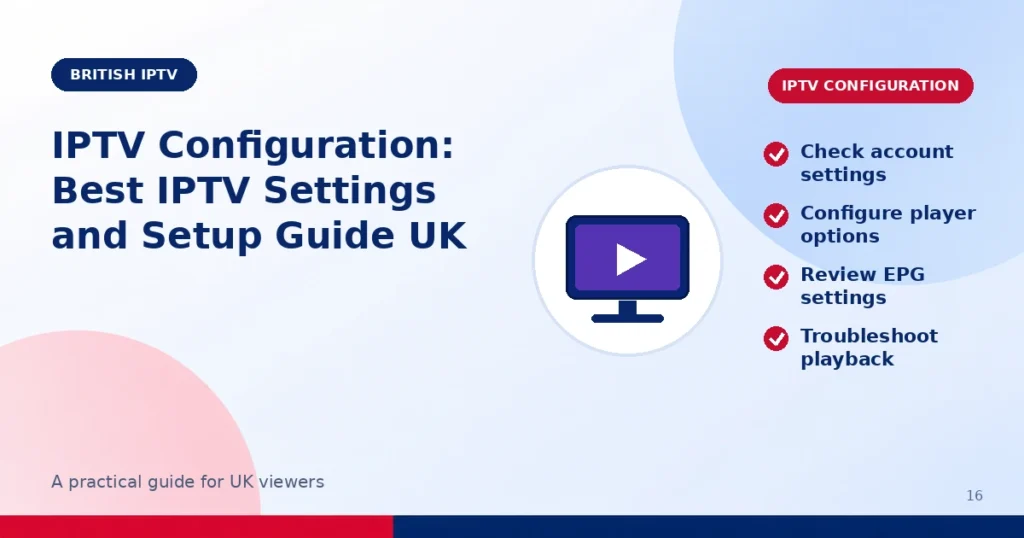
Setting up IPTV correctly can make a big difference to your streaming experience. Whether you are using an Android TV box, Amazon Firestick, Smart TV, smartphone, or computer, the right IPTV configuration helps your device connect to a compatible service and play available streams smoothly.
However, simply installing an IPTV application is not always enough. You may also need to enter your subscription details, configure a playlist, adjust playback preferences, set up an Electronic Programme Guide (EPG), and choose suitable video settings.
Understanding the different IPTV settings can also help you identify problems such as buffering, channels not loading, missing programme information, or playback errors.
In this guide, we explain how IPTV configuration works, how to complete your IPTV setup on compatible devices, which player settings matter, and how to troubleshoot common issues.
What Is IPTV Configuration?
IPTV configuration refers to the process of connecting an IPTV-compatible device and player to a service or authorised content source and adjusting the settings required for playback.
It involves more than downloading an application. You may need to configure your internet connection, add an M3U playlist or Xtream Codes login, organise available channels, and adjust the player’s playback options.
A typical IPTV configuration includes:
- Device configuration: Preparing your Firestick, Android TV box, Smart TV, phone, or computer.
- Internet settings: Connecting to a reliable Wi-Fi or Ethernet network.
- IPTV account setup: Adding the subscription details supplied by your provider.
- Playlist configuration: Importing a supported M3U playlist or using Xtream Codes login.
- EPG configuration: Loading compatible electronic programme guide information.
- Player settings: Adjusting video decoding, subtitles, audio, and playback preferences.
The exact process depends on your device, IPTV application, and provider.
What Do You Need Before Setting Up IPTV?
Before starting your IPTV setup, make sure you have the necessary equipment and account information.
1. A Compatible Device
You can configure IPTV on several types of devices, including:
- Amazon Fire TV Stick
- Android TV and Google TV
- Android TV boxes
- Samsung and LG Smart TVs
- Android smartphones and tablets
- iPhone and iPad
- Windows PCs and Mac computers
Not every IPTV application supports every operating system, so check compatibility before installing one.
2. A Stable Internet Connection
IPTV relies on an internet connection to deliver video streams.
You can connect your device through Wi-Fi or Ethernet, depending on its available ports and network capabilities. A wired connection may offer more consistent performance when Wi-Fi coverage is weak.
Your required internet speed depends on stream quality, network congestion, and the number of devices using the connection.
3. An IPTV Player
An IPTV player is the application used to load and play compatible streams.
Examples include TiviMate, IPTV Smarters, VLC, and Kodi. Their supported platforms and features differ, so choose one that works with your device and subscription format.
4. IPTV Subscription Details
Your provider may supply:
- M3U playlist URL
- Xtream Codes username
- Xtream Codes password
- Server URL
- EPG URL, where applicable
Keep these details private and enter them only into a trusted, compatible IPTV application.
How to Configure IPTV: Step-by-Step IPTV Setup
The following steps explain a typical IPTV configuration. The exact menu names may differ between applications.
Step 1: Connect Your Device to the Internet
Start by connecting your streaming device to your home network.
On most devices, open Settings, select Network or Internet, and choose your Wi-Fi connection. Enter your network password and confirm that the device is connected.
If your device supports Ethernet, you can connect it directly to your router using a compatible cable.
Once connected, test whether other online applications can access the internet.
Step 2: Install a Compatible IPTV Application
Open the official app store on your device and search for an IPTV player.
Before installing it, check:
- Supported operating systems
- M3U playlist compatibility
- Xtream Codes login support
- EPG features
- Available playback settings
- Developer information and permissions
Install the application and open it after installation is complete.
An IPTV player does not normally include a subscription or automatically provide channels. You need a compatible content source separately.
Step 3: Add Your IPTV Subscription
The next step is connecting your subscription to the IPTV player.
Most compatible applications provide one or more playlist options.
Option A: M3U playlist configuration
If your provider supplies an M3U playlist URL:
- Open the IPTV application.
- Select Add Playlist or Add M3U Playlist.
- Enter the complete playlist URL.
- Add a playlist name if requested.
- Submit the details and allow the application to load the playlist.
Option B: Xtream Codes configuration
If your provider supplies Xtream Codes credentials:
- Open the Add User or Add Account section.
- Select the Xtream Codes login option.
- Enter the server URL.
- Add your username.
- Enter your password.
- Submit the details to connect.
Use the login method supported by both your provider and IPTV player.
Step 4: Load Your Channels and Categories
After connecting successfully, the IPTV application may retrieve your available content.
Depending on the service and player, you may see:
- Live TV
- Sports
- News
- Entertainment
- Movies
- TV series
- Favourites
Allow the playlist to finish loading before testing playback.
If categories are missing, refresh the playlist and check whether your subscription includes the relevant content.
Step 5: Configure the Electronic Programme Guide
An Electronic Programme Guide, commonly called an EPG, displays television programme information.
It can show current and upcoming programmes, channel names, and broadcast schedules.
If your IPTV player supports EPG configuration, follow these steps:
- Open the application’s EPG or TV Guide settings.
- Check whether an EPG source is already configured.
- Enter the EPG URL supplied by your provider if required.
- Save the configuration.
- Select Refresh or Update EPG.
- Allow the programme information to load.
EPG support depends on the application and the data supplied by your IPTV provider. A player cannot display accurate programme schedules if compatible guide information is unavailable.
Best IPTV Settings for Better Streaming
Once your subscription is connected, reviewing your IPTV settings can help you customise playback and improve compatibility.
There is no universal configuration that works best for every device. Your ideal settings depend on the application, hardware, stream format, and internet connection.
Here are the main settings worth understanding.
1. Video Quality Settings
Some IPTV applications allow you to select a preferred video quality or playback resolution.
If you have a high-resolution television and a compatible stream, you may be able to watch HD or 4K content.
However, selecting a higher resolution does not turn a lower-quality source into 4K video. The stream itself must support the resolution.
If playback is unstable, test a lower available quality where the player or source provides that option.
2. Built-In Player Settings
Many IPTV applications include a built-in video player. It allows you to watch streams without opening a separate media application.
Depending on the IPTV software, built-in player settings may include:
- Hardware or software decoding
- Audio track selection
- Subtitle settings
- Aspect ratio
- Video scaling
- Playback controls
- External player selection
If the built-in player works correctly, you may not need to change anything.
If a stream has no sound, displays a black screen, or fails to play, check whether the application offers an alternative playback option.
3. Hardware Decoder Settings
A hardware decoder uses your device’s supported video-processing components to decode compatible video formats.
This can reduce the amount of work performed by the main processor and may improve playback efficiency.
Some IPTV applications offer options such as:
- Hardware decoding
- Software decoding
- Automatic decoding
- Hardware acceleration
When should you use hardware decoding?
It is generally worth testing hardware decoding first if your device supports the stream’s video format.
However, compatibility varies. If you experience a black screen, visual glitches, missing audio, or playback errors, try another supported decoding mode.
Do not assume hardware decoding is always better. The best option depends on the device, application, and video format.
4. Buffering and Playback Settings
Some IPTV players provide playback or buffering-related options. Their names and behaviour vary.
Before changing advanced settings, check your network connection and test another stream.
You can also:
- Close unnecessary background applications.
- Restart your streaming device.
- Check available storage.
- Update the IPTV application.
- Use Ethernet where possible.
- Test another compatible stream.
Increasing a buffer setting does not necessarily fix a slow connection or a problem with the provider’s source.
5. Audio and Subtitle Settings
If the video plays but the audio is missing or incorrect, check the audio track and output settings.
Some streams provide multiple audio tracks or subtitle options.
You may be able to change:
- Audio language
- Audio output
- Subtitle language
- Subtitle synchronisation
- Subtitle visibility
Available options depend on the stream and player.
6. Aspect Ratio and Screen Settings
If the video appears stretched, cropped, or surrounded by black bars, check the aspect ratio and display settings.
Common options include:
- Auto
- Original
- Fit to screen
- Stretch
- Zoom
The original or automatic setting is usually a sensible starting point. Avoid stretching the picture unless you specifically prefer that display.
IPTV Settings for Different Devices
The general configuration process is similar across devices, but their settings menus and application availability differ.
IPTV Settings on Firestick
To configure IPTV on an Amazon Fire TV Stick:
- Connect your Firestick to the internet.
- Open the Amazon Appstore.
- Install a compatible IPTV player.
- Launch the application.
- Add your M3U playlist or Xtream Codes details.
- Load the channels and test playback.
If your IPTV player provides decoder settings, review them only when you experience playback problems or need to change compatibility options.
For more detailed instructions, see our guide on how to install IPTV on Firestick.
IPTV Configuration on Android TV
Android TV and Google TV devices support a range of IPTV applications.
Open the Google Play Store, install a compatible player, and enter your subscription information.
You can then configure supported EPG, video playback, and channel organisation settings.
IPTV Settings on Smart TVs
Samsung and LG Smart TVs use different operating systems and application stores.
Check the available IPTV players for your specific television model. Install a supported application and follow its playlist setup instructions.
Not every IPTV player is available on every Smart TV.
IPTV Configuration on iPhone and iPad
On iPhone and iPad, open the App Store and select an IPTV player compatible with your device.
After installation, add your playlist or account details using the supported login method.
For device-specific steps, read our guide to setting up IPTV on iPhone and iPad.
IPTV Configuration on Windows and Mac
You can use compatible desktop IPTV applications or media players to access authorised streams.
Install the software, open its playlist or network stream option, and enter the information supplied by your provider.
VLC, for example, can play compatible network streams and M3U playlists, although it does not provide all the features of a dedicated IPTV application.
What Is IPTV Encoder Setup?
IPTV encoder setup is different from configuring an IPTV player or subscription.
An IPTV encoder is hardware or software that converts an audio-video source into a digital stream suitable for distribution over an IP network.
For example, a broadcaster or content distributor may use an encoder to prepare video from a camera, satellite receiver, or other authorised source.
A typical IPTV encoder setup involves several stages:
- Connect the source: Connect the camera or video equipment to the encoder using a supported input.
- Configure the input: Select the appropriate video and audio input formats.
- Choose encoding settings: Set the supported resolution, frame rate, video codec, and audio format.
- Configure the network: Assign the required network settings and destination.
- Select the streaming protocol: Choose a protocol supported by the receiving platform, such as an appropriate HTTP-based or transport-stream delivery method.
- Test the output: Confirm that the receiving player or platform can decode the stream.
How to Set Up an IPTV Encoder
If you are researching how to set up an IPTV encoder, start with the manufacturer’s instructions because the process differs significantly between devices.
The main settings to review include:
| Encoder setting | Purpose |
| Video input | Selects the connected video source |
| Resolution | Defines the output picture size |
| Frame rate | Controls the number of video frames per second |
| Video codec | Determines how video is compressed |
| Bitrate | Controls the amount of data used for the stream |
| Audio codec | Defines the audio encoding format |
| Streaming protocol | Determines how the stream is delivered |
| Network configuration | Connects the encoder to the distribution system |
For a simple home IPTV viewer, you normally do not need to configure an encoder. Your IPTV provider or content distributor handles the streaming infrastructure.
IPTV Guidelines: Important Things to Check
Following basic IPTV guidelines can help you avoid setup mistakes and maintain a more reliable viewing experience.
Use a compatible application: Check that your IPTV player supports your device and subscription format.
Protect your login information: Keep your M3U URL, username, password, and server address private.
Keep applications updated: Use supported versions of your IPTV player and device software.
Check your network: A stable internet connection is essential for consistent playback.
Review player settings carefully: Change decoder and playback options only when needed.
Use authorised content sources: Make sure your provider has the necessary rights to distribute the content it offers.
Avoid untrusted downloads: Install applications through official app stores or verified developer websites whenever possible.
Common IPTV Configuration Problems and How to Fix Them
Even when you follow the correct IPTV setup process, you may encounter connection or playback issues.
Here are common problems and their possible solutions.
1. IPTV Channels Are Not Loading
This may happen because of incorrect login details, an expired subscription, an invalid playlist URL, or a temporary service problem.
Solution: Check your subscription details, confirm that your playlist is correct, and refresh the channel list.
2. IPTV Keeps Buffering
Buffering can be caused by weak Wi-Fi, network congestion, device limitations, or problems with the stream source.
Solution: Restart your router, test your internet connection, close unnecessary applications, and try a wired connection where possible.
3. IPTV Has No Sound
The selected audio format may not be supported by your player or device.
Solution: Check the audio track, review your device’s sound settings, and try another supported playback option.
4. IPTV Player Shows a Black Screen
A black screen may indicate a video decoding issue, unsupported format, or unavailable stream.
Solution: Try another channel, check the built-in player settings, and test an alternative decoder if the application offers one.
5. EPG Information Is Missing
The programme guide may not have loaded or the supplied EPG source may be incorrect.
Solution: Refresh the guide and check that your provider has supplied compatible EPG information.
6. IPTV Application Is Running Slowly
Limited device resources, insufficient storage, outdated software, or background applications may affect performance.
Solution: Restart your device, clear the application cache where supported, remove unused apps, and install available updates.
Frequently Asked Questions
1. What is IPTV configuration?
IPTV configuration is the process of connecting a compatible device and player to an IPTV service, adding subscription details, loading playlists, and adjusting playback settings.
2. What are the best IPTV settings?
The best settings depend on your device and IPTV player. Start with automatic or supported playback options, check hardware decoding compatibility, and adjust video or audio settings only when necessary.
3. How do I set up IPTV?
Connect your device to the internet, install a compatible IPTV player, enter your M3U playlist or Xtream Codes credentials, and load the available content.
4. What is hardware decoding in IPTV settings?
Hardware decoding uses compatible device components to process video streams. It may improve playback efficiency, but compatibility depends on the device and video format.
5. What is the difference between IPTV setup and IPTV encoder setup?
IPTV setup usually means connecting a player to an IPTV service. IPTV encoder setup involves converting an audio-video source into a digital stream for distribution.
6. Why are my IPTV settings not working?
Incorrect credentials, unsupported formats, outdated applications, or network problems may cause configuration issues. Check your login details and device compatibility first.
7. Do I need to configure an IPTV encoder to watch IPTV?
No. Regular IPTV viewers generally only need a compatible device, player, internet connection, and authorised IPTV source. The provider handles the encoder and streaming infrastructure.
8. Can I use the same IPTV settings on different devices?
Your subscription details may work across supported devices, but player settings and configuration steps can differ between Firestick, Android TV, Smart TVs, and mobile devices.