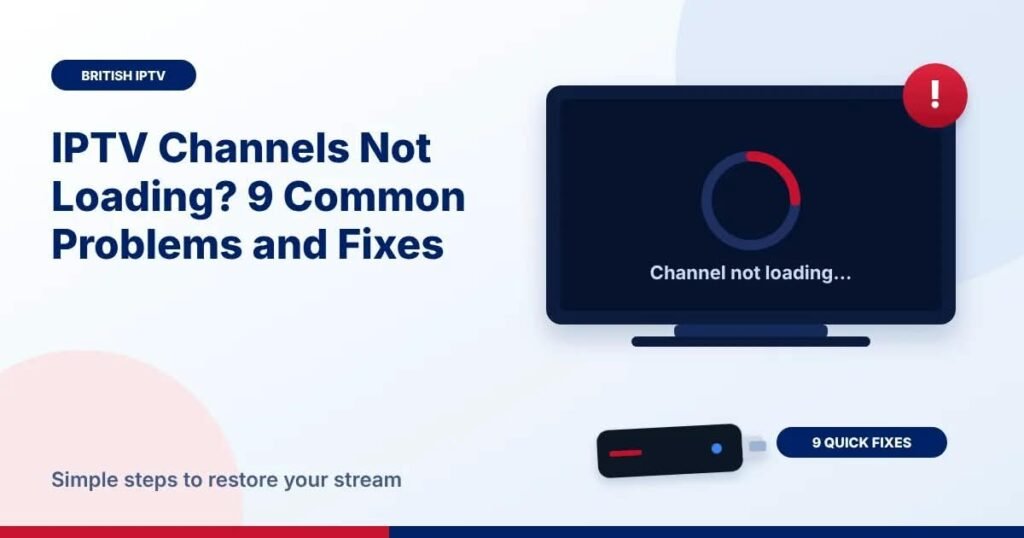
When IPTV channels are not loading, you may see a black screen, a spinning loading icon, a playback error or a channel that suddenly stops working. Sometimes the entire playlist disappears, while other times only a few channels fail to play. These problems can be frustrating, especially when your IPTV service was working normally before.
The cause is not always your internet connection. Incorrect login details, an expired subscription, an outdated playlist, app problems, server interruptions and device settings can all affect IPTV playback.
This guide explains why IPTV channels stop loading and how to troubleshoot the problem step by step without unnecessarily deleting your playlist or changing settings.
Why Are My IPTV Channels Not Loading?
IPTV channels can fail to load for several reasons. Identifying whether the problem affects one channel, the entire playlist or multiple devices makes troubleshooting easier.
Common causes include:
- Weak or unstable internet connection
- IPTV provider server problems
- Incorrect username, password or server URL
- Expired or inactive subscription
- Outdated M3U playlist or Xtream Codes details
- IPTV player cache or application errors
- Device storage or software problems
- Too many simultaneous connections
- Incorrect streaming or playback settings
Before trying advanced solutions, check whether the problem affects every channel or only specific ones. This simple test can help identify where to start.
How to Fix IPTV Channels Not Loading
Try these nine solutions in order. Start with the simple checks before removing playlists or resetting your application.
1. Check Your Internet Connection
A stable internet connection is essential for IPTV streaming. If your connection keeps dropping or has insufficient bandwidth, channels may remain stuck on loading or stop playing after a few seconds.
Try these steps:
- Open another streaming application on your device.
- Play a video to check whether it loads normally.
- Restart your router and wait for the connection to return.
- Move your streaming device closer to the router if using Wi-Fi.
- Connect through Ethernet if your device supports it.
If other streaming services also struggle, your home network may be the problem. If they work normally but IPTV channels do not, continue checking the player and provider.
2. Restart Your IPTV App and Streaming Device
Temporary application errors can prevent channels from opening even when your subscription and internet connection are working.
Instead of repeatedly trying to open the same channel, restart the application properly.
- Close the IPTV player.
- Open your device settings.
- Force stop the application if that option is available.
- Restart your Firestick, Android TV, Smart TV or streaming box.
- Open the IPTV player again and test a channel.
A full restart can clear temporary processes that may interfere with playback.
3. Check Your IPTV Subscription Status
If all channels suddenly stop working, check whether your IPTV subscription is still active.
An expired account, suspended connection or provider-side account issue can prevent the playlist from playing.
Check the following:
- Is your subscription still valid?
- Are your username and password correct?
- Has your provider changed the server address?
- Have you reached the allowed connection limit?
- Has your provider reported a service interruption?
If you are unsure, contact your provider and ask them to confirm your account status. Avoid purchasing another subscription before checking whether the existing account can be restored.
For more account-related help, see our IPTV Account guide.
4. Refresh Your IPTV Playlist
An outdated or incorrectly loaded playlist can cause missing channels, blank categories or endless loading.
If your IPTV application offers a playlist refresh option, use it before deleting the entire playlist.
General steps:
- Open your IPTV player.
- Go to Settings or Manage Playlists.
- Select your existing playlist.
- Choose Update, Refresh or Reload.
- Wait for the application to complete the process.
- Return to Live TV and test playback.
The exact menu names depend on your IPTV player.
If refreshing does not work, ask your provider whether the M3U URL or Xtream Codes server details have changed. Re-entering an old or incorrect URL repeatedly will not resolve a server-side problem.
You can also read our guide to Xtream IPTV Playlist setup for help understanding playlist connection details.
5. Clear the IPTV App Cache
Temporary files stored by an IPTV application can sometimes cause loading problems. Clearing the cache may help, particularly when the application has become slow or unresponsive.
On most Android-based devices:
- Open Settings.
- Select Apps or Applications.
- Find your IPTV player.
- Open Storage.
- Select Clear Cache.
- Reopen the application and test your channels.
Important: Clear Cache and Clear Data are different options. Clearing data may remove saved playlists, login details and preferences. Try clearing the cache first and make sure you have your account information before considering a full reset.
6. Check Whether the IPTV Provider’s Server Is Down
Sometimes the issue is outside your control. Your IPTV provider may be experiencing maintenance, server overload or a temporary interruption.
Look for these signs:
- All channels stop working simultaneously.
- The same account fails on multiple devices.
- The playlist cannot refresh.
- Other internet applications work normally.
- Your provider confirms a service interruption.
Contact your provider and ask whether the affected channels or server are currently available. If only one channel fails, the issue may be limited to that particular stream rather than the entire service.
7. Test Another IPTV Player
An IPTV playlist and an IPTV player perform different functions. The playlist or subscription provides access information, while the player handles playback.
A problem with one application does not necessarily mean your subscription has stopped working.
If your provider supports multiple players, you can test the same account in another compatible application. If channels work in the alternative player, investigate the original app’s settings, version or compatibility.
If the same channels fail in both players, the issue may involve the playlist, account, internet connection or provider.
Read our Best IPTV Apps guide to understand how to choose a compatible player.
8. Check Playback and Streaming Settings
Some IPTV applications provide different playback engines, decoder options or stream formats. An incompatible setting may cause a black screen, failed playback or repeated loading.
Try the following:
- Check whether hardware or software decoding is selected.
- Update the IPTV player to a supported version.
- Review the available playback engine options.
- Check whether your provider supports the selected stream format.
- Restart the application after making a change.
Change one setting at a time so you can identify whether it affects playback. If you are unsure which option to use, ask your provider or app developer for the recommended configuration.
Our IPTV Configuration and Settings guide covers additional setup considerations.
9. Check Device Storage and Software Updates
A streaming device with very little free storage or outdated software may struggle to run IPTV applications.
Check your device before reinstalling the player:
- Remove applications you no longer use.
- Check available storage space.
- Install pending system updates.
- Update the IPTV application through its official source.
- Restart the device after updating.
If the problem continues, reinstalling the IPTV player may help. However, save your login details and playlist information first so you can set it up again.
IPTV Channels Not Loading on One Device: What Should You Check?
If your IPTV channels work on your phone but not on your Firestick or Smart TV, the issue may be related to that device or its application.
| Device | What to check |
| Firestick | App cache, available storage and software updates |
| Android TV | Player compatibility, permissions and cache |
| Smart TV | Supported IPTV application and TV software |
| Windows PC | Player version, network settings and playlist URL |
| iPhone or iPad | App compatibility and supported playlist format |
You can also test the same device using another internet connection, such as a mobile hotspot. If IPTV works on the alternative network, investigate your home router, DNS configuration or internet provider. This test does not prove that your ISP is blocking the service, so avoid making that assumption without further evidence.
When Should You Contact Your IPTV Provider?
Contact your provider when basic troubleshooting does not restore playback.
Give them useful information rather than simply reporting that IPTV is not working. Explain:
- Whether all channels or only selected channels are affected
- Which device and IPTV player you are using
- Whether the playlist refreshes successfully
- Whether the same account works on another device
- Any error message displayed on the screen
- When the problem started
This information can help the provider determine whether the issue is related to your account, playlist, server or a particular channel.
Frequently Asked Questions
1. Why are all my IPTV channels not loading?
Possible causes include an expired subscription, incorrect login details, an outdated playlist, a server interruption or an internet connection problem.
2. Why is my IPTV showing a black screen?
A black screen can result from a failed stream, incompatible playback settings, an application issue or a channel that is temporarily unavailable.
3. Why do some IPTV channels work while others do not?
Individual streams can experience separate interruptions. The affected channel may be unavailable, incorrectly listed or experiencing a provider-side problem.
4. Will clearing the IPTV cache delete my playlist?
Clearing the cache normally removes temporary files, not saved account information. Clearing application data may remove your playlist and settings.
5. Why does my IPTV playlist load but channels do not play?
The playlist may contain channel information while the actual streams are unavailable. Check your subscription, test another player and contact your provider if playback continues to fail.
6. Can an outdated IPTV app stop channels from loading?
Yes. An outdated or incompatible application can cause playback and connection problems. Check for updates from the app’s official source.
Conclusion
When IPTV channels are not loading, avoid immediately deleting your playlist or resetting your device. First, check your internet connection, restart the application, confirm your subscription and refresh the playlist. Then investigate the player, provider server and device settings.
The most useful troubleshooting step is identifying whether the issue affects one channel, the entire playlist or multiple devices. Once you know that, you can narrow down the cause and choose the right solution instead of making unnecessary changes.